
Booking site look
यह पेज अभी हिंदी में उपलब्ध नहीं है, इसलिए अंग्रेज़ी में दिखाया गया है।
Settings > Booking site look sets the logo, icon and colours of your online booking site (yoursalon.focl.app). It applies to the whole business, every location. Your website uses the same colours.
How do I add my logo?
Section titled “How do I add my logo?”- Go to Settings > Booking site look.
- Under Images, next to Logo, press Upload and pick your logo file. It shows at the top of the booking site.
- Do the same for Browser tab icon: the small icon in the browser tab. A square image works best.
- Press Save. Images and colours are saved together.
Images can be PNG, JPEG, WebP or GIF, up to 4 MB each. To take an image off, press Remove, then Save.
How do I change the colours?
Section titled “How do I change the colours?”The quickest way is a preset:
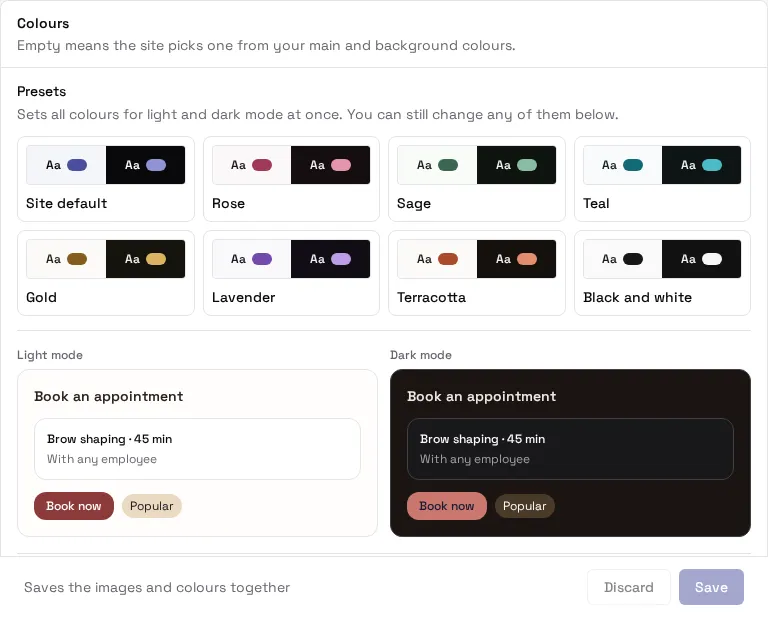
- Under Colours > Presets, tap one: Site default, Rose, Sage, Teal, Gold, Lavender, Terracotta or Black and white. A preset sets every colour for light and dark mode at once.
- Look at the Light mode and Dark mode previews under the presets. They show a sample booking card in your colours.
- Change any single colour below if you like (the preset stops being marked once you do).
- Press Save.
To set colours by hand, each row has a light mode and a dark mode colour. The five everyday ones show first (Main colour, Text on main colour, Background, Text, Accent); press Show all 19 colours for the rest, like Borders and Focus rings. Leave a colour empty and the site picks one from your main and background colours.
Reset to site defaults empties every colour.
Why are there light and dark colours?
Section titled “Why are there light and dark colours?”Your booking site follows each client’s phone or computer: in dark mode it uses your dark colours, otherwise your light ones. Presets set both, so the site looks right either way.
What is the corner radius?
Section titled “What is the corner radius?”How round buttons and cards are, for example 0.75rem or 12px. Leave it empty for the site default. Presets don’t change it.
How do I see the real booking site?
Section titled “How do I see the real booking site?”Press Preview site at the top of the page. It opens your booking site in a new tab. You only see it once online booking is turned on (see Online booking). Save first: the site shows saved changes only.
Troubleshooting
Section titled “Troubleshooting”My logo didn’t upload. Use a PNG, JPEG, WebP or GIF under 4 MB. If you see a message about too many uploads, wait 10 minutes and try again.
The booking site still shows the old look. Make sure you pressed Save, then reload the booking site. Your browser may keep the old tab icon for a while.
There is no Preview site button. Online booking isn’t on yet, so there is no booking address to open.
“Corner radius is a length such as 0.75rem or 12px”. Type a number with rem or px, or leave it empty.
Text is hard to read on my site. Use a preset (each is checked for readable text in both modes), or make sure each “Text on” colour stands out from the colour under it.