
Cash drawer
यह पेज अभी हिंदी में उपलब्ध नहीं है, इसलिए अंग्रेज़ी में दिखाया गया है।
Business > Cash drawer shows a location’s cash drawer: is it open, what should be in it, every cash movement, and past sessions. Each location has one drawer session at a time, shared by every tablet there. Staff usually run the drawer on the front desk tablet (see Cash drawer on the tablet); this page is the owner’s view, and you can do the same steps here.
Open Cash drawer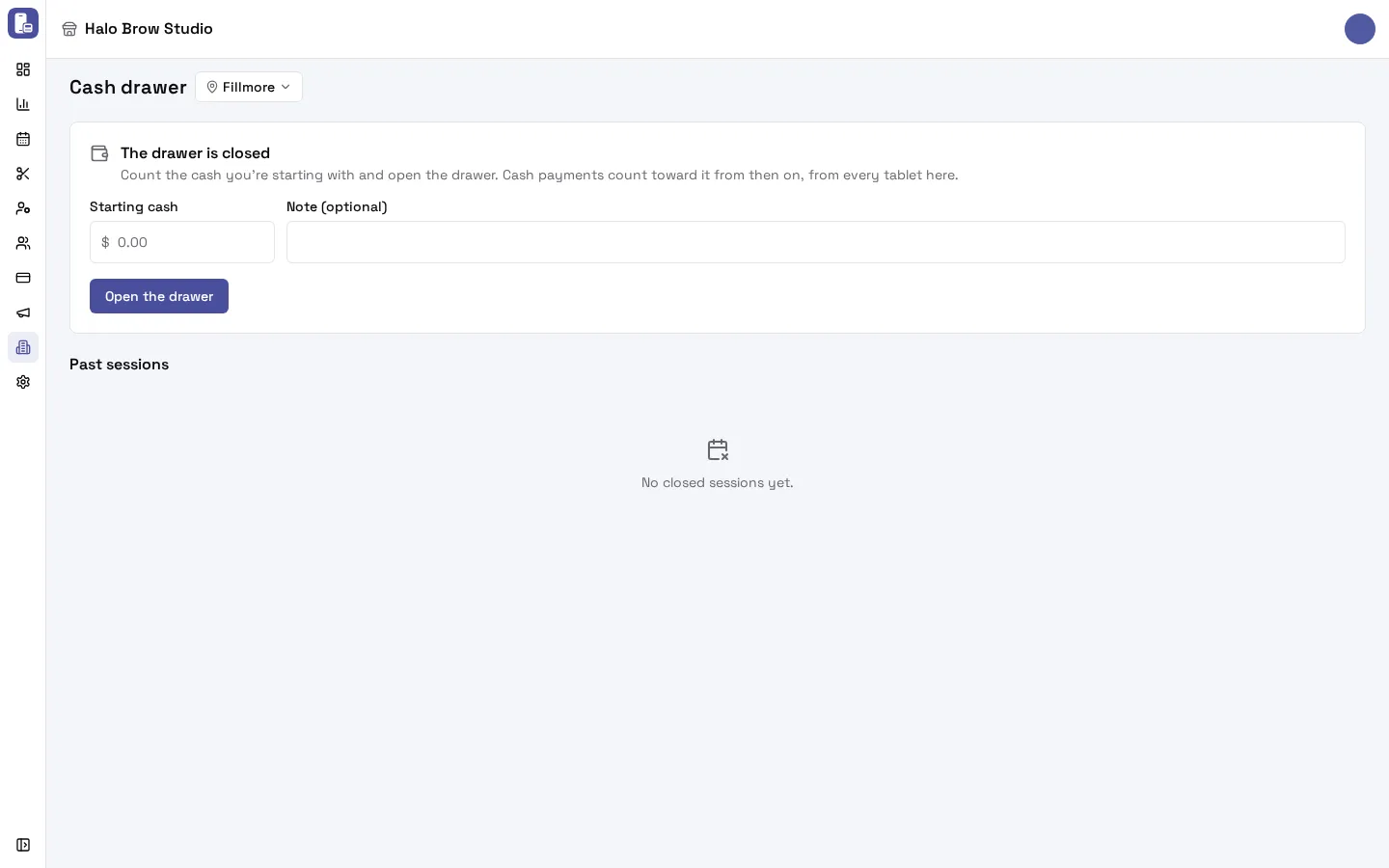
How do I open the drawer?
Section titled “How do I open the drawer?”- Pick the location at the top.
- Under The drawer is closed, type the Starting cash (the float you put in), and a Note if you like.
- Press Open the drawer.
From then on every cash payment at that location, from every tablet, counts toward this session. Cash sales taken while the drawer is closed still count: they go into the next session.
What does “Should be in the drawer” mean?
Section titled “What does “Should be in the drawer” mean?”While the drawer is open, Should be in the drawer is the cash expected right now, and how it adds up: starting cash + cash sales + cash tips − cash refunds + cash put in − cash taken out.
Only members allowed to see reports see this figure. Everyone else sees “The count is blind”: the expected amount appears only after the drawer is closed, so the count is honest.
How do I put cash in or take cash out?
Section titled “How do I put cash in or take cash out?”Press Put cash in or Take cash out, type the Amount and pick what it was for:
- In: Change for the drawer, Other.
- Out: Change for the drawer, Moved to the safe or bank, Supplies, Tips paid out in cash, Other.
Other needs a note. Every movement shows in What happened with who did it.
How do I close the drawer at the end of the day?
Section titled “How do I close the drawer at the end of the day?”- Count the cash in the drawer.
- Press Close and count.
- Type the Cash counted (and a note if you like). The box doesn’t show what the drawer should hold: it’s a blind count.
- Press Close the drawer.
FocalPOS then shows what should have been in the drawer, what you counted, and Over / short: Even, an amber “$2.00 over” or a red “$5.00 short”.
What is in “What happened”?
Section titled “What is in “What happened”?”The open session’s timeline, newest first: cash put in and taken out (with the reason and who), “Drawer opened without a sale” (someone opened the drawer on the tablet with no sale), count corrections, and, for members who can see reports, each cash payment and cash refund. A tablet’s entry names the employee whose PIN was used.
How do I see past sessions?
Section titled “How do I see past sessions?”Past sessions lists closed drawers, newest first. Click one to see who opened and closed it, the figures, the count and over or short, and its timeline. Show older sessions loads more.
How do I correct a count?
Section titled “How do I correct a count?”Found a $20 bill under the tray? Open the past session and press Correct the count. Type the new count and Why, then Save the count. The timeline shows the change, for example “Count corrected: $148.00 → $150.00”, with your note.
Only members allowed to issue refunds (usually managers) can correct a count.
Who can use the cash drawer?
Section titled “Who can use the cash drawer?”- The page: members allowed to take payments at that location.
- The expected amount: members allowed to see reports.
- Correcting a count: members allowed to issue refunds.
- On the tablet: the device profile needs Cash drawer turned on, and the employee needs Run the cash drawer. Both are off by default. See Devices.
Opening the drawer from the dashboard needs no PIN.
Troubleshooting
Section titled “Troubleshooting”The drawer is short or over
Section titled “The drawer is short or over”Open the session and check What happened: a cash refund, a pay-out without a note, or tips paid out in cash are the usual reasons. If you find the money later, use Correct the count.
“The drawer is already open here. The page has been reloaded.”
Section titled ““The drawer is already open here. The page has been reloaded.””Someone opened the drawer on a tablet (or another screen) at the same time. The page now shows the open session.
“This drawer session was closed in the meantime.”
Section titled ““This drawer session was closed in the meantime.””Someone closed it on a tablet while you were looking. The page reloads; find the session under Past sessions.
The page says I can’t use it
Section titled “The page says I can’t use it”You need permission to take payments at that location. Ask the business owner (see Members).
Cash sales aren’t in the session
Section titled “Cash sales aren’t in the session”Cash taken while the drawer was closed counts toward the next session. Open the drawer at the start of the day.