
Automatic messages
यह पेज अभी हिंदी में उपलब्ध नहीं है, इसलिए अंग्रेज़ी में दिखाया गया है।
An automatic message is a marketing text that goes out by itself when something happens: a client’s first visit, a birthday, a missed appointment, a client who hasn’t been back in a while. You find them all in Marketing > Messages, on the Marketing tab.
Open Messages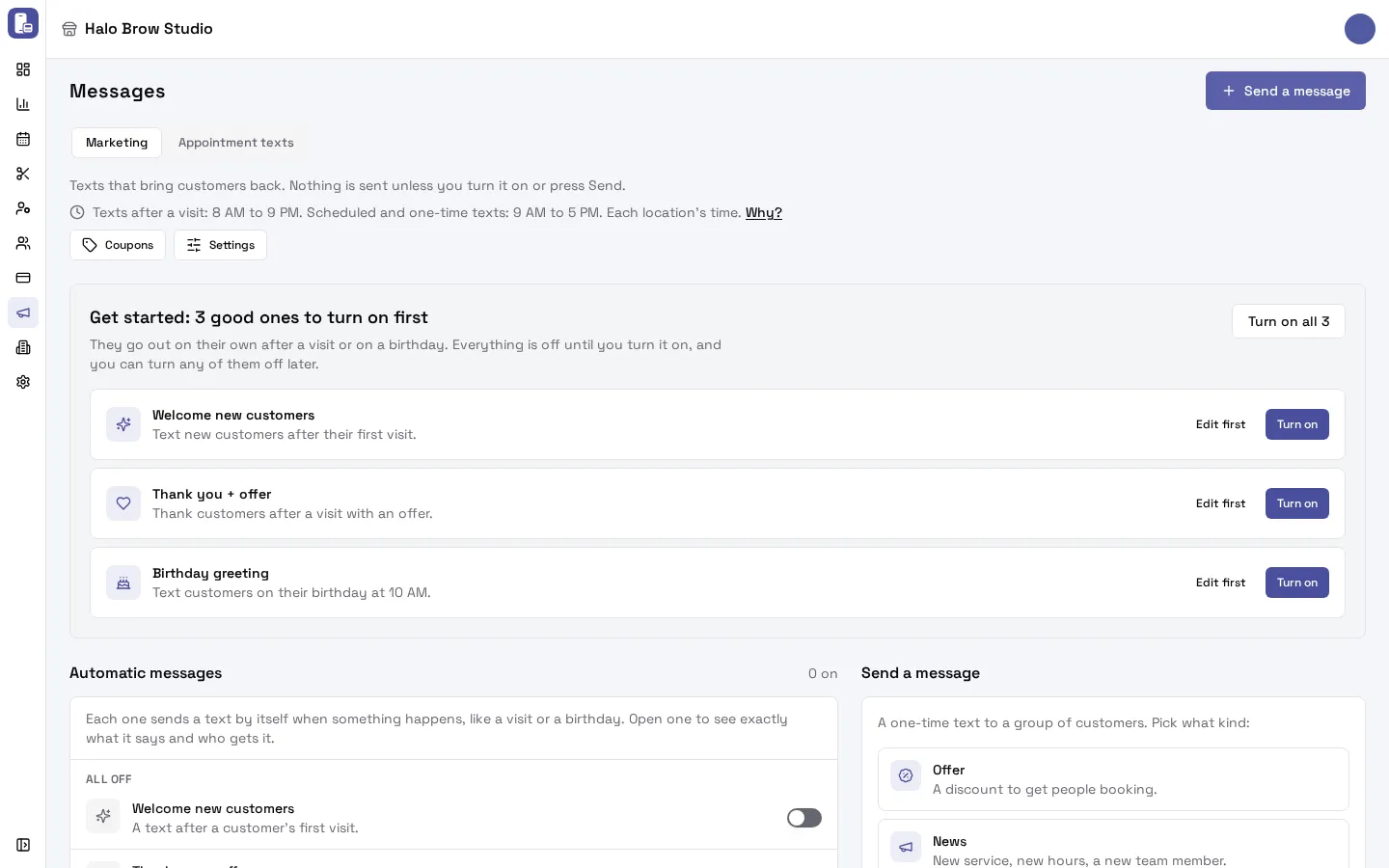
What automatic messages are there?
Section titled “What automatic messages are there?”FocalPOS gives you nine ready-made messages. Each one is off until you turn it on.
| Message | When it sends | Each client gets it at most (default) |
|---|---|---|
| Welcome new customers | After a client’s first visit | Once ever |
| Thank you + offer | After a visit, with an offer | Once every 90 days |
| Birthday greeting | On the client’s birthday, at the time you pick (10 AM by default) | Once a year |
| Birthday offer | An offer a few days before the client’s birthday | Once a year |
| Win back lapsed customers | Every week on the day you pick, to clients who haven’t visited in a number of days (60 by default) | Once every 90 days |
| VIP reward | When a client’s total spend passes the amount you set | Once ever |
| Missed appointment | When a client misses an appointment (no-show) | Once every 30 days |
| Canceled appointment | When a client cancels, inviting them to rebook | Once every 30 days |
| Rebook reminder | A set number of weeks after a visit, if the client hasn’t booked again. See Rebook reminder | Once every 30 days |
Booking confirmations, appointment reminders and the plain thank-you after a visit are not marketing. They live on the Appointment texts tab. See Appointment texts and reminders.
How do I turn on an automatic message?
Section titled “How do I turn on an automatic message?”- Go to Marketing > Messages.
- While nothing is on yet, Get started suggests three: Welcome new customers, Thank you + offer and Birthday greeting. Press Turn on next to one, or Turn on all 3.
- Or open any message in the Automatic messages list (or press Edit first) to check the wording, then press Turn on.
- FocalPOS asks you to confirm and tells you what will send. Confirm, and it’s on.
To turn one off, flip its switch in the list or press Turn off on its page. Turning it off pauses it: the wording and settings stay for next time.
How do I change what a message says or when it sends?
Section titled “How do I change what a message says or when it sends?”Open the message. Its first box, What it does, is a sentence with highlighted words, for example “Remind customers 6 weeks after a visit for any service if they haven’t booked again, at 10 AM.” Tap a highlighted word to change it (a number, a time, a weekday, a service or an offer).
- The text: type your message. Use the Insert buttons to add details that change for each client: Customer’s name, Business name, Business phone, Location name, Booking link, and, when the message gives an offer, Offer code and Offer expiry.
- Added automatically: the opt-out line (“Reply STOP to opt out” by default) and, if you turned it on, your business name at the start. You set both in Marketing settings.
- The phone preview shows exactly what a client gets, how many characters it is and how many texts it takes.
- Press Save changes. Changes apply from the next send.
Times you can pick are on the half hour, inside the sending hours.
How do I add an offer to an automatic message?
Section titled “How do I add an offer to an automatic message?”Tap With no offer in the sentence and pick a discount (% off, $ off, a free item or buy X get Y) and how many days it’s good for after the text (30 by default). Each client gets their own 6-character code. Put Offer code in the text so they see it, and Offer expiry to show the last day (“Nov 12”). See Coupons and offers.
If an offer ends or you press Stop accepting, the message shows Paused · its offer ended with a Fix button, because texts that name a code that no longer works don’t go out.
How often can one client get the same message?
Section titled “How often can one client get the same message?”Each message has a line Each customer gets it with a limit, such as “at most once every 30 days” or “only once”. Tap it to change it. This is on top of your business-wide limit of one marketing text per client every few days (3 by default), set in Marketing settings.
Who will get it?
Section titled “Who will get it?”At the bottom of a message, About N customers would get the next one counts the clients who match and said yes to marketing texts. Press See who to see examples and why each one matches.
What do the statuses in the list mean?
Section titled “What do the statuses in the list mean?”- Off: nothing sends.
- On · next send Mon, Oct 12 at 10 AM: a scheduled message (birthday, win-back, rebook) and when it runs next.
- On · sends after each visit: a message that sends when something happens.
- Paused · its offer ended: its offer expired or was stopped. Open it and press Fix.
- On · some texts skipped: some clients’ offers have no end date, so texts that name Offer expiry skip them. Take Offer expiry out of the text, or give the offer an end.
- Customized: someone changed its steps by hand (Customize steps (advanced)). It opens in the step builder.
Can I build my own message from scratch?
Section titled “Can I build my own message from scratch?”Yes. Under the list, Start from scratch opens the step builder for unusual cases. On any ready-made message, Customize steps (advanced) opens the same builder with its steps filled in. Most salons never need it.
How do I test a message on my own phone?
Section titled “How do I test a message on my own phone?”Under the phone preview, send a test to your own phone. Tests only ever go to the phone number on your account, and it must be verified first in Your account. The first time, press Allow test texts to this number. Test texts start with “TEST:”, are billed like any other text ($0.012), and you can send one every 30 seconds. If you once texted STOP to your salon’s number, you can’t get tests until you text START to it.
How do I see what a message brought in?
Section titled “How do I see what a message brought in?”If you can see sales reports, each message shows what it brought in:
- Offer used 3 times: 3 visits · $240: visits where its offer was used.
- Within 14 days of the text: 2 visits · $150: completed visits within 14 days of a delivered text, where no offer was used.
The two lines are never added together.
How do I delete or archive a message?
Section titled “How do I delete or archive a message?”Use the ⋯ menu on its row. A draft that never sent can be deleted (Delete draft). Anything that has sent is archived instead, and shows under Archived at the bottom, where Restore brings it back paused (never straight on).
Troubleshooting
Section titled “Troubleshooting”Why did only some of my clients get the message?
Section titled “Why did only some of my clients get the message?”A client is skipped when any of these is true:
- They haven’t said yes to marketing texts, or they texted STOP. See Text consent.
- They already got a marketing text (from any message) within the last few days. The default is one every 3 days. See Marketing settings.
- They already got this message within its Each customer gets it limit.
- The message names an offer code but the offer couldn’t be given (it ended or was stopped).
- The send fell outside the sending hours and was skipped (see below).
Skipped clients don’t show in the texts list at all. Clients who were texted but whose text failed show in Marketing > SMS (Texts). See Why didn’t my client get a text?
Why didn’t my message send at 7 PM?
Section titled “Why didn’t my message send at 7 PM?”Marketing texts only go out inside fixed hours, in each location’s own time: messages after a visit, missed appointment, cancellation or payment from 8 AM to 9 PM, and scheduled messages and one-time sends from 9 AM to 5 PM. A text after a visit that ends at 9:30 PM waits until 8 AM the next morning. See When do marketing texts go out?
Why can’t I turn a message on?
Section titled “Why can’t I turn a message on?”- The text names Offer code or Offer expiry but the message gives no offer. Add an offer or take the detail out.
- The text is empty.
- Its offer ended. Press Fix.
What does a message cost?
Section titled “What does a message cost?”Each marketing text costs $0.012, however long it is. Test texts cost the same. One-time sends show an Estimated cost before you send. Appointment texts (confirmations, reminders, the thank-you) are included in your plan.
I can’t see Marketing > Messages.
Section titled “I can’t see Marketing > Messages.”You need access to Marketing on your member role. Ask the business owner. See Members.