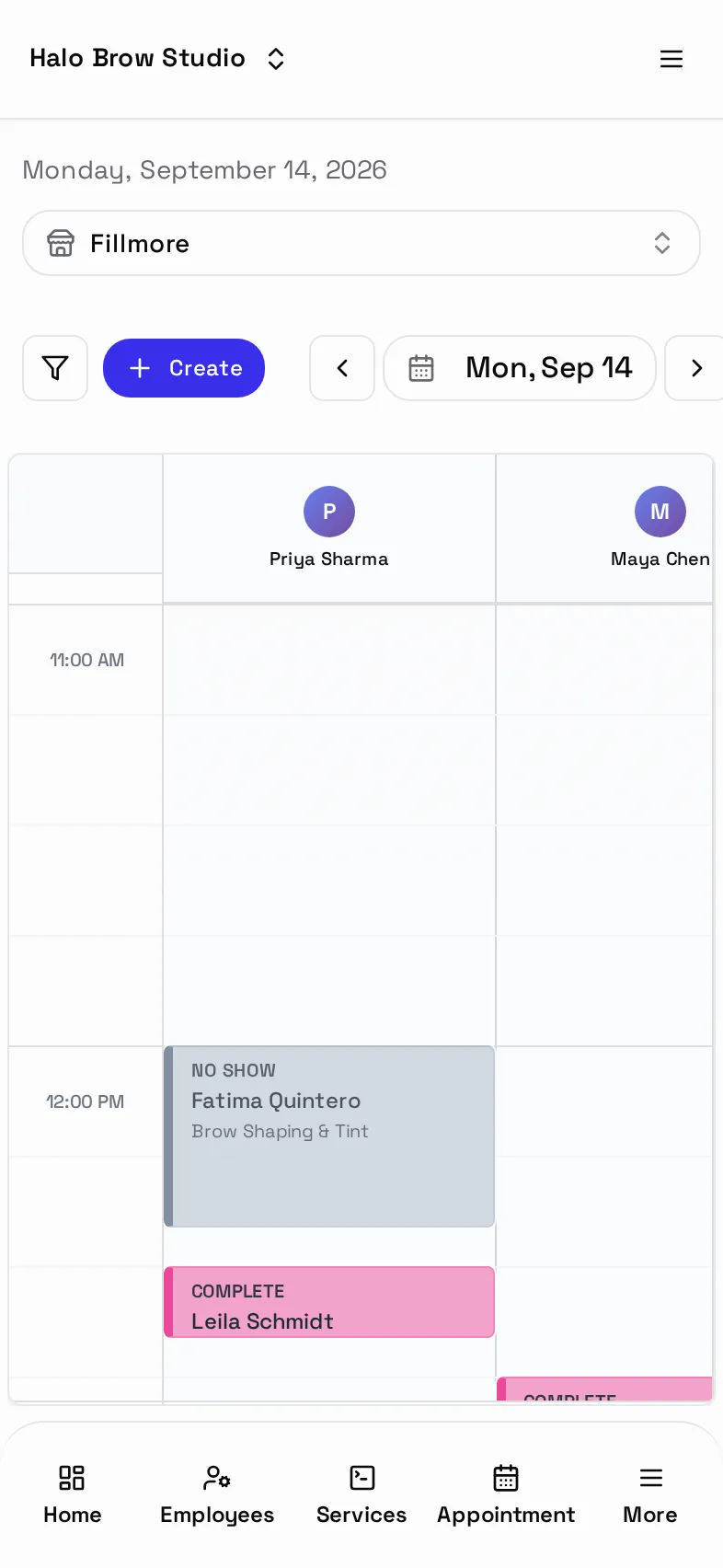
The booking calendar
यह पेज अभी हिंदी में उपलब्ध नहीं है, इसलिए अंग्रेज़ी में दिखाया गया है।
Appointments → Bookings shows the day with one column per person.
Open Bookings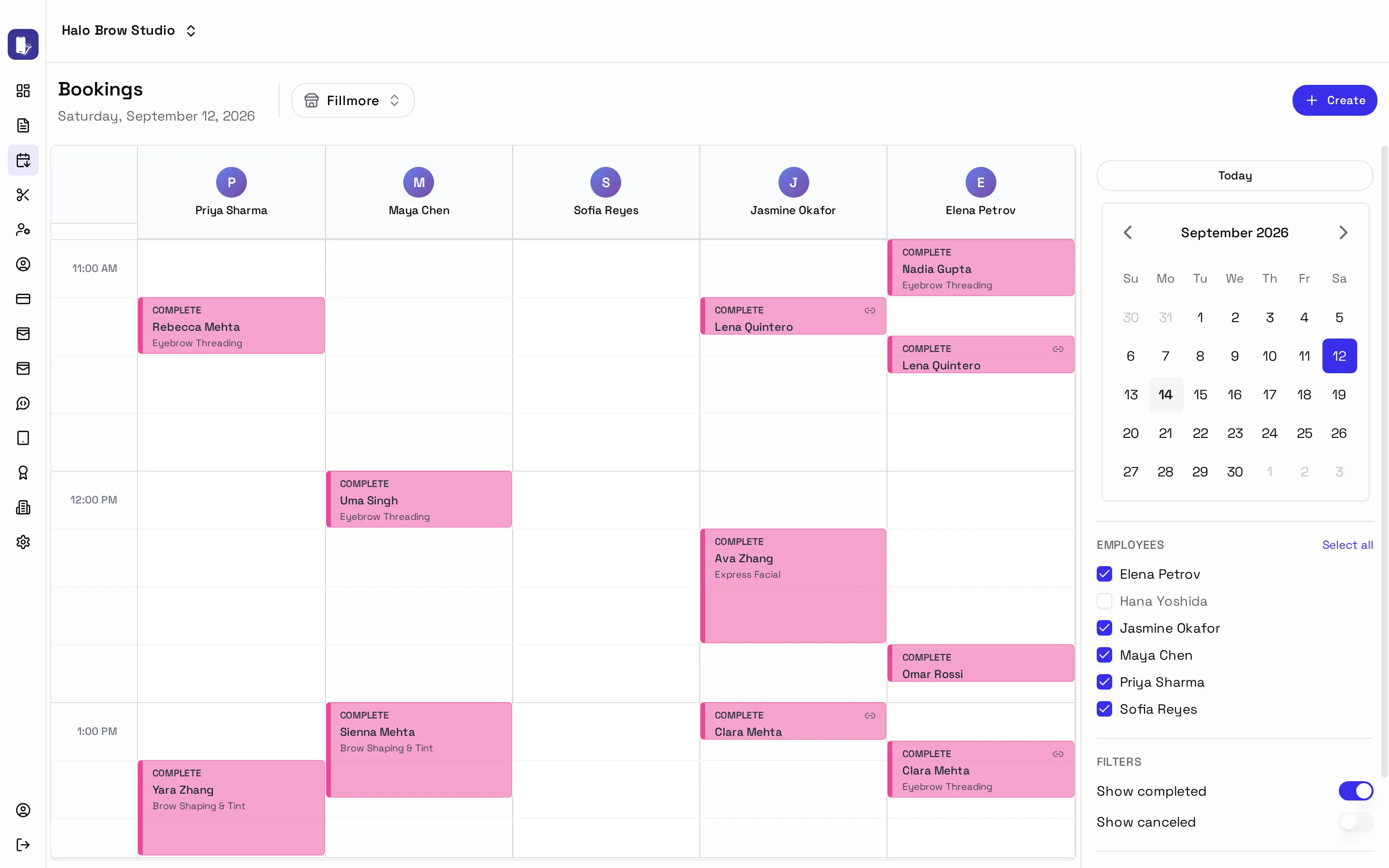
Find your way around
Section titled “Find your way around”- Pick a day in the small calendar on the right, or press Today.
- Under Employees, tick who to show. Select all / Deselect all for quick changes.
- Under Filters, choose whether to show completed and canceled bookings.
Booking colours
Section titled “Booking colours”Each booking’s colour shows where it is in the visit:
| Status | Meaning |
|---|---|
| Scheduled | Booked and confirmed |
| Needs Confirmation | Waiting for you to approve it |
| Checked In | The client has arrived |
| In Service | Being worked on now |
| Complete | Done |
| Canceled / No Show | Didn’t happen |
Add, move and change bookings
Section titled “Add, move and change bookings”- Add: press Create. (Needs online booking switched on.)
- Move: drag it to a new time, or to another person’s column.
- Make longer or shorter: drag its bottom edge.
- Every move asks you to Confirm, or Confirm & Notify to text the client.
Inside a booking
Section titled “Inside a booking”Click a booking to open it. From Actions you can Confirm Appointment, Start Service, Mark Complete, Mark No-Show or Cancel Appointment.
You can also:
- add services, or a one-off custom service with its own price
- add a note. Quick ones include First-time Customer, Sensitive Skin, Running Late and VIP Customer
- Apply Coupon
When you’re done, press Save, or Save & Notify to text the client.
On your phone
Section titled “On your phone”