
Clock-in area
Staff can clock in two ways: on the front desk tablet, or from their own phone with the employee app. The Clock-in area decides where phone clock-ins are allowed. It is set for each location under Settings > (your location) > Clock-in area.
Open Clock-in area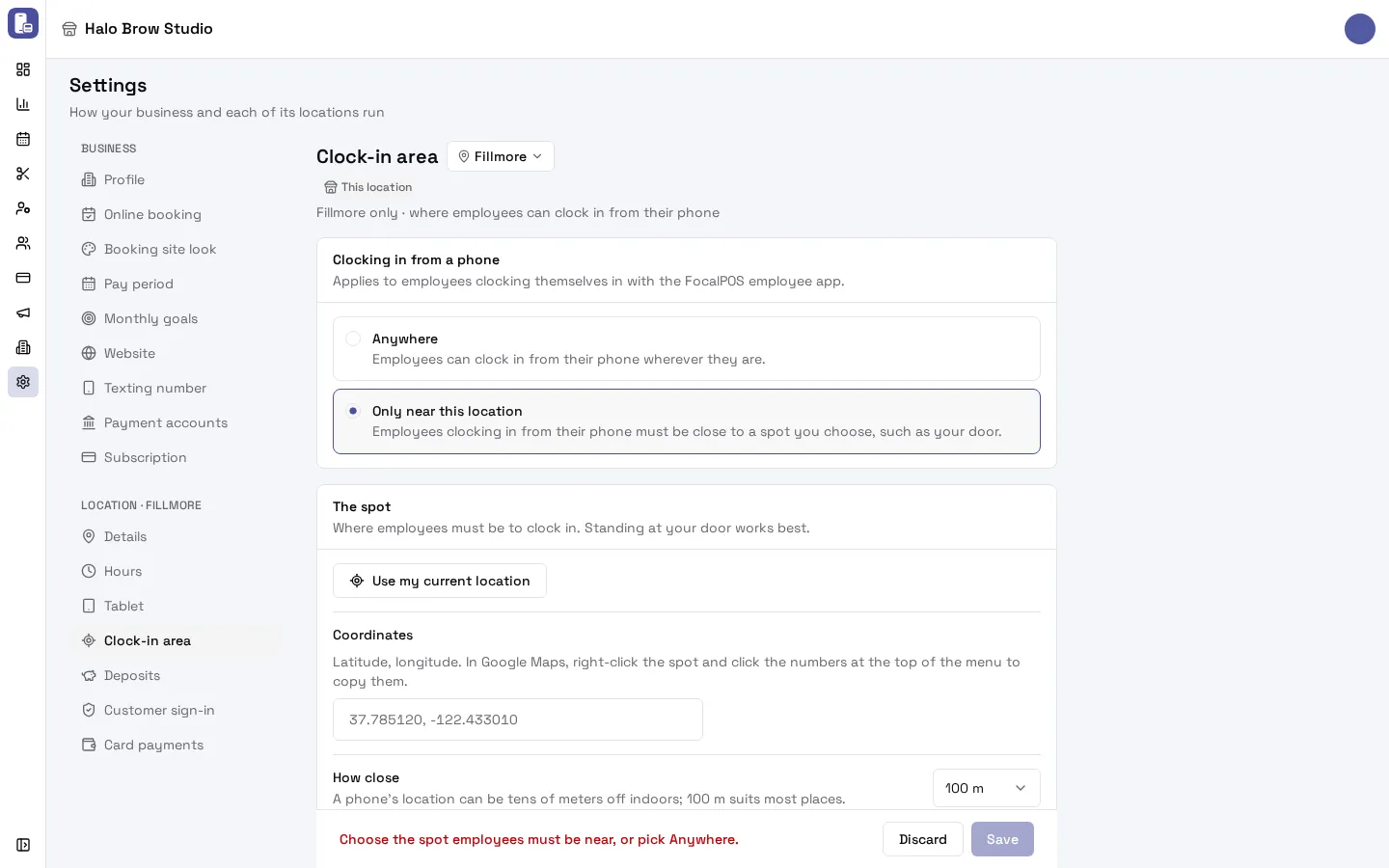
What are the choices?
Section titled “What are the choices?”- Anywhere (the default): employees can clock in from their phone wherever they are.
- Only near this location: employees clocking in from their phone must be close to a spot you choose, such as your door.
How do I make staff clock in only at the salon?
Section titled “How do I make staff clock in only at the salon?”- Go to Settings, pick the location in the location menu next to the page title, then open Clock-in area.
- Choose Only near this location.
- Set The spot, in one of two ways:
- Stand at your door with your phone or laptop and press Use my current location. Allow location when your browser asks. The page says how accurate it was, for example “Found you, accurate to within 12 m.”
- Or type the Coordinates (latitude, longitude), for example
37.785120, -122.433010. In Google Maps, right-click the spot and click the numbers at the top of the menu to copy them.
- Check the spot with Open in Google Maps, next to Chosen spot.
- Choose How close: 50 m, 100 m (suits most places), 200 m or 500 m.
- Press Save.
Who is limited by the clock-in area?
Section titled “Who is limited by the clock-in area?”- Limited: employees clocking themselves in from their phone in the employee app.
- Not limited: the front desk tablet, managers clocking someone in, and clocking out (works anywhere).
A phone can fake its location, so the area keeps honest phones at the door rather than stopping every cheat.
What does an employee see when they are too far away?
Section titled “What does an employee see when they are too far away?”The employee app asks the phone for its location when they open the clock-in screen. If they are outside the area, it says how far they are, for example “You’re 1.2 km from Fillmore. Clock in within 100 m.” If location is off for the app, it says “Your location is needed to clock in at Fillmore. Turn on location for this app in your phone’s settings, then tap Locate again.” They can tap Locate again after moving or turning location on.
How do I turn the limit off?
Section titled “How do I turn the limit off?”Choose Anywhere and press Save. The spot you typed is kept on the page in case you switch back, but it isn’t used.
Troubleshooting
Section titled “Troubleshooting”Staff can’t clock in from their phone. They are probably outside the area, or location is off for the employee app. Ask them to turn on location for the app in their phone’s settings, stand inside the salon and tap Locate again. Indoors, a phone’s location can be tens of meters off: if this happens often, choose a bigger How close, like 200 m. They can always clock in on the front desk tablet.
“That fix is rough (within 80 m)”. Your browser’s location wasn’t precise. Try again standing at the door (on a phone works best), or type the coordinates from Google Maps.
“Your browser didn’t share your location”. Allow location for the dashboard in your browser settings and try again, or enter the coordinates.
Save is blocked with “Choose the spot employees must be near, or pick Anywhere.” Set the spot first, or choose Anywhere.
“Enter two numbers, latitude then longitude”. Type the coordinates as two numbers separated by a comma, latitude first, like 37.785120, -122.433010.
Does the tablet still work? Yes. Clocking in on the front desk tablet is never limited by the clock-in area.