
Add your team
Clients book with a person, so every stylist or technician needs to be in FocalPOS as an employee. If you take clients yourself, add yourself too. Front desk staff who use the tablet are employees as well.
Show the steps in this video as text
Add your first employee
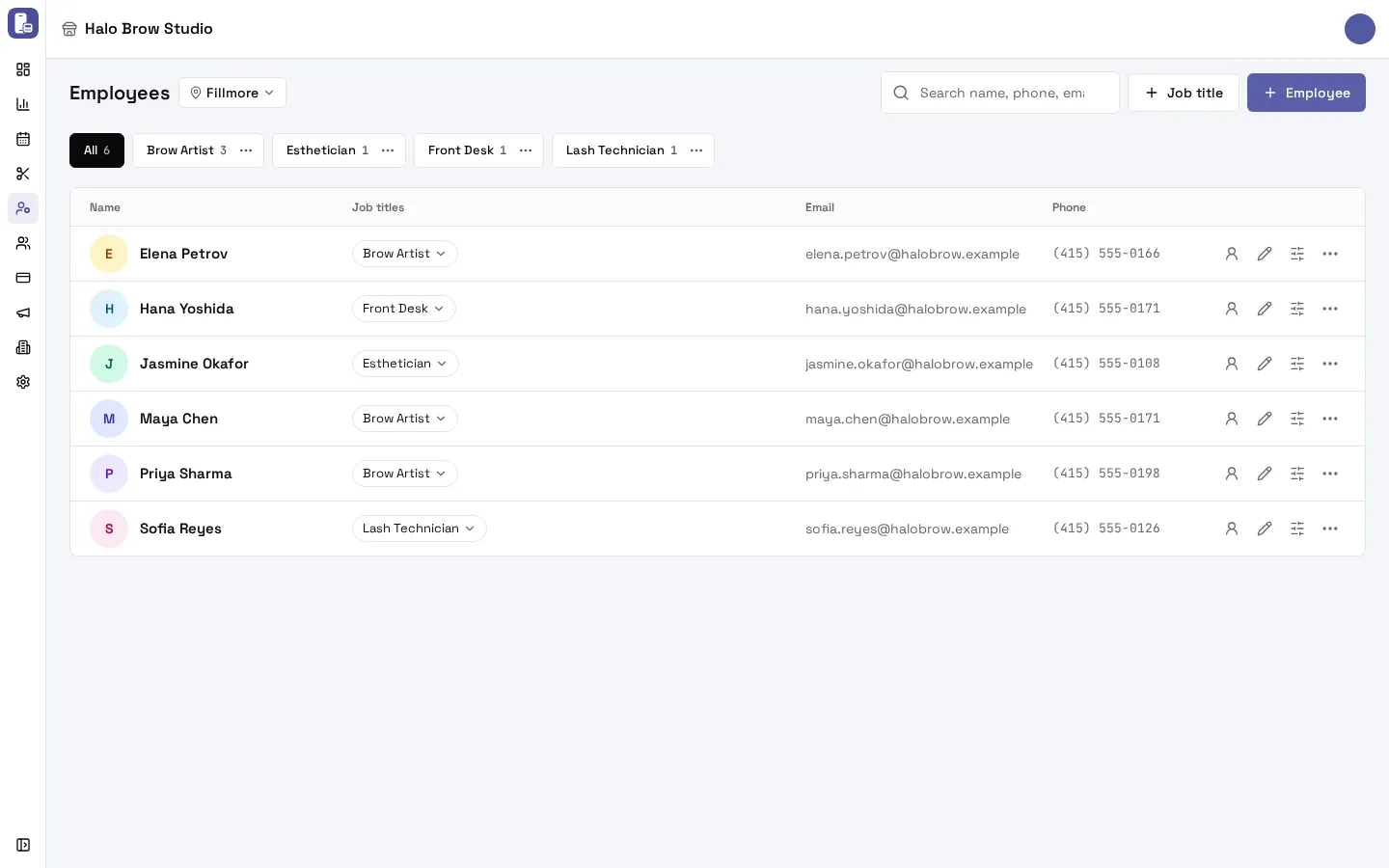
- Start with a job title, like Nail Tech: press Job title.
- Now press Employee to add someone.
- Enter their name and email, and an 8-digit PIN they will use on the front desk tablet and to clock in.
- Pick their job title.
- Choose what they can do: be booked online, give refunds, run the cash drawer and more. Then press Create employee.
How do I make job titles?
Section titled “How do I make job titles?”A job title is a label like Nail Tech, Stylist or Front Desk. Every employee needs at least one, so make them first.
Go to Employees > Staff and press + Job title (on a phone, + then New job title). Type the Job title and press Create.
Each job title gets a chip above the list. Its ⋯ has Rename and Delete job title. You can only delete a job title nobody holds (archived people count too).
How do I add an employee?
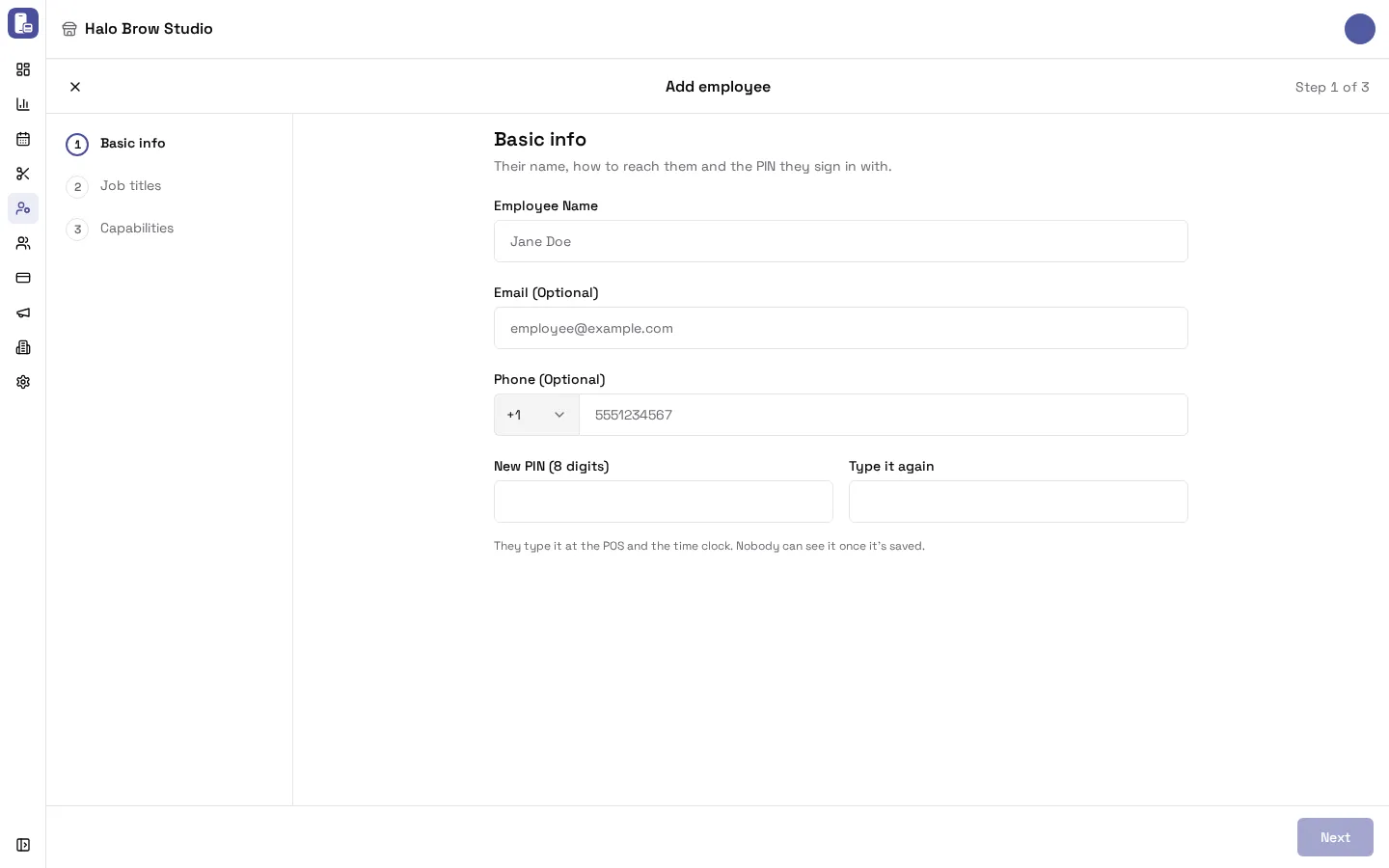
Section titled “How do I add an employee?”Press + Employee (on a phone, + then Add employee). The Add employee form has three steps:
-
Basic info: Employee Name, Email (Optional), Phone (Optional), and their PIN: type 8 digits in New PIN (8 digits) and again in Type it again.
The PIN is how they sign in on the front desk tablet and clock in and out. Every person at a location needs a different PIN. Nobody can see a PIN once it’s saved, not even you, so tell them what it is.
Add their email if they’ll use the employee app on their phone. It’s how they sign in there (no password).
-
Job titles: tick at least one. The first one you tick is their main job title.
-
Capabilities: what they can do beyond clocking in. Bookable online and Bookable at the kiosk start on; the rest start off. See the table below.
Press Create employee.
What does each capability do?
Section titled “What does each capability do?”| Capability | What it allows |
|---|---|
| Bookable online | Clients can book them on your booking site. |
| Bookable at the kiosk | Clients can choose them on the location’s check-in tablet. |
| Add custom services | They can add an unlisted service to a sale. |
| Issue refunds | Their PIN approves refunds at the front desk. |
| Save customers’ cards | Their PIN approves keeping a client’s card on file. |
| Run the cash drawer | Their PIN opens and closes the drawer and records cash in and out, on a tablet allowed to. |
| Open the daily report | Their PIN opens the daily report on a tablet whose profile asks for a PIN. |
Change these any time on their page under What they can do. Each switch saves straight away.
How do I edit someone, reset their PIN or set their pay?
Section titled “How do I edit someone, reset their PIN or set their pay?”On Employees > Staff, press the pencil next to the person (or ⋯ > Edit employee). Each section saves on its own:
- Details: name, email and phone. Press Save.
- Job titles: tick or untick, at least one.
- Status: Active (works here), Disabled (temporarily off, for example on leave: kept everywhere but can’t be booked or use their PIN), or Archived (no longer works here; kept for history).
- What they can do: the capabilities above.
- PIN: press Set PIN or Reset PIN, type the new 8 digits twice and press Save PIN. Their old PIN stops working straight away. The page shows when the PIN was last set.
- Pay: press Set pay or Change pay.
How do I set someone’s pay?
Section titled “How do I set someone’s pay?”In the Pay section, press Set pay (or Change pay) and choose the Pay type:
| Pay type | What you enter |
|---|---|
| Hourly | Hourly rate, plus commission on services if they get it |
| Daily | Daily rate, plus commission if they get it |
| Booth rent | Booth rent and whether Rent is paid Weekly or Monthly |
| Commission only | Their commission |
| Hybrid | Any mix of hourly rate, daily rate, booth rent and commission |
For commission, choose Commission on services: None, A share of the price (a percent like 40) or A fixed amount per service, then fill in Commission. Pick the day it Starts on, add Notes (optional), and press Save pay.
A change starts on the date you pick. Earlier pay stays in their history, so past pay periods are still worked out with the old pay. Staff see their pay terms in the employee app. Your pay period (weekly, every two weeks and so on) is set in Settings > Pay period.
How do I choose which services each person does?
Section titled “How do I choose which services each person does?”Everyone can do every service to start with, so this part is optional. Use it when someone doesn’t do certain services, or to give them their own price, time or commission for a service:
- On Employees > Staff, open the person’s ⋯ menu and choose Services they do (or press the sliders icon on their row).
- Switch Can Perform off for the services they don’t do.
- To change their price, time or commission for one service, click that service and set Price Override, Duration Override (min), or switch on Enable Commission and set the Commission Rate and Commission Type (Percentage or Fixed). Press Save.
Troubleshooting
Section titled “Troubleshooting”“Someone at this location already uses that PIN or email. Pick a different one.”
Section titled ““Someone at this location already uses that PIN or email. Pick a different one.””Every employee at a location needs their own PIN and their own email. Choose a different 8-digit PIN, or check the email isn’t already on another employee (archived people included).
I can’t press Next on the Job titles step
Section titled “I can’t press Next on the Job titles step”Tick at least one job title. If the list says “No job titles yet”, go back to Employees > Staff and press + Job title first.
An employee forgot their PIN
Section titled “An employee forgot their PIN”Nobody can look a PIN up. Open their page, press Reset PIN in the PIN section, type a new one twice and press Save PIN. Tell them the new PIN.
An employee can’t be booked online
Section titled “An employee can’t be booked online”Check, on their page:
- Status is Active,
- Bookable online is on under What they can do,
- they do the service (Services they do),
- they have a shift at that time, and the location is open.
Also check Customers can choose their employee in Online booking if clients can’t pick them by name.
Someone left. Can I delete them?
Section titled “Someone left. Can I delete them?”There is no delete, so their history stays in your reports. Open ⋯ and choose Archive (or set Status to Archived). Archived people leave the staff list (they’re under the Archived chip) and can’t be booked. To bring someone back, open the Archived chip and choose Restore in their ⋯ menu.
Someone is on leave
Section titled “Someone is on leave”Choose Disable in their ⋯ menu. They keep everything but can’t be booked or use their PIN. Choose Enable when they’re back.
I don’t see the Pay section
Section titled “I don’t see the Pay section”Only people allowed to manage staff can see and change pay. Ask the owner.
Their earnings look wrong in the employee app
Section titled “Their earnings look wrong in the employee app”Check their Pay entry and its start date, your Settings > Pay period, and that they clocked out every day: a day with no clock-out counts 0 hours. You can fix clock times in Work history.