
Your clients
यो पेज अझै नेपालीमा उपलब्ध छैन, त्यसैले अंग्रेजीमा देखाइएको छ।
Customer in the sidebar is your client list for the whole business (all locations share one list). Clients are added automatically when they book online or when your team books or checks them out, so you rarely need to type anyone in.
Open Customers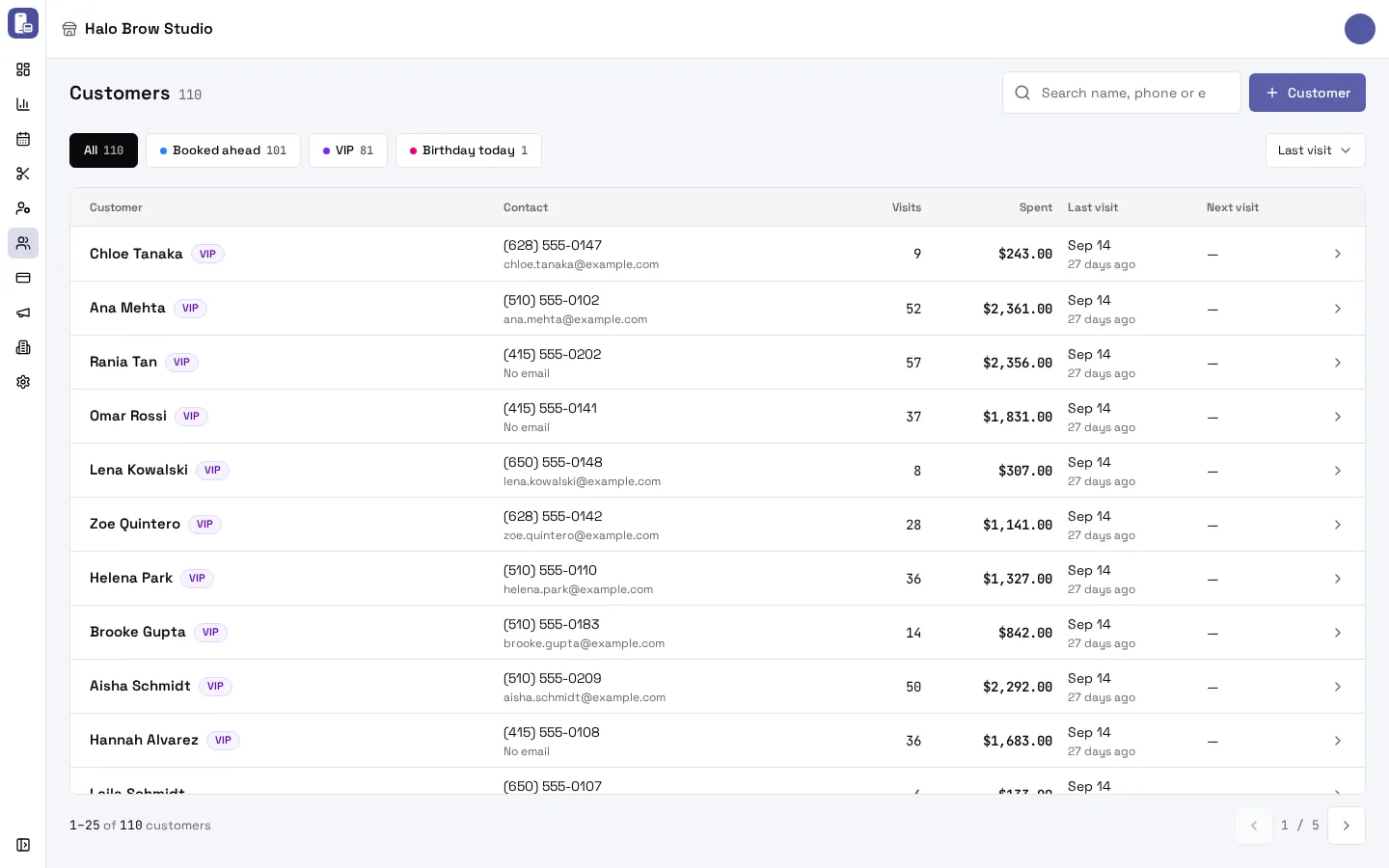
How do I find a client?
Section titled “How do I find a client?”- Search by name, phone number or email. A full phone number finds that exact client.
- Sort by Last visit (the default), Name or Newest.
- The list shows 25 clients a page. Use the arrows at the bottom for more.
What do the chips mean?
Section titled “What do the chips mean?”| Chip | Who it lists |
|---|---|
| All | Every active client |
| Booked ahead | Clients with a visit booked |
| VIP | Your best regulars |
| New | First-timers |
| At risk | Regulars who haven’t been back for a while |
| High value | Clients who have spent $10,000 or more in total |
| Birthday today | Today’s birthdays |
| Archived | Clients you archived (hidden everywhere else) |
Each chip shows how many clients it holds. Empty chips are hidden.
What is the “Only …” filter above the chips?
Section titled “What is the “Only …” filter above the chips?”When you open the list from a report (for example a group in Clients), it shows only those clients, with a label such as “Only Last visit 31–45 days ago”. Press the × on it to see everyone again.
How do I add a client?
Section titled “How do I add a client?”- Press + Customer (the + on a phone).
- Type their Name and Phone, and an Email if you have one.
- Press Add customer.
If another client already has that phone number, FocalPOS says whose number it is and opens them. Clients are never merged automatically.
What’s on a client’s page?
Section titled “What’s on a client’s page?”Click a client to open their page. At the top: their tier (for example VIP), language, phone, email, birthday and when they became a customer. Then Total spent, Visits, Avg / visit and No-shows.
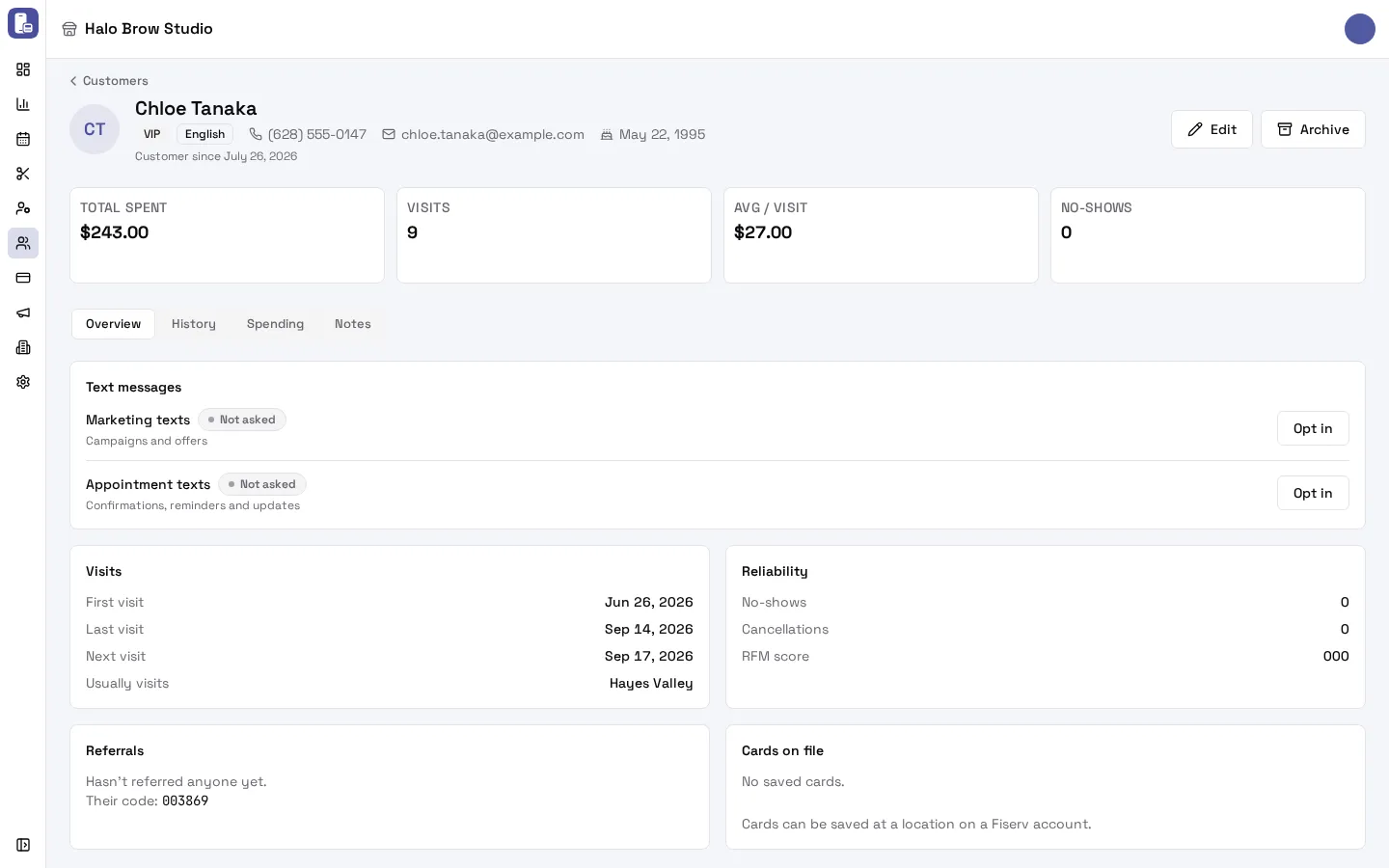
Four tabs:
- Overview: text messages, visits (first, last, next, where they usually go), reliability (no-shows, cancellations), referrals and cards on file.
- History: every visit, newest first. Visits at the location you have picked open their appointment.
- Spending: total, average and last spend, favourite services and staff.
- Notes: allergies, colour formulas, preferences. Press New note, edit or delete notes any time. Everyone on your team sees them.
How do I change a client’s phone, email or birthday?
Section titled “How do I change a client’s phone, email or birthday?”Press Edit, change Name, Phone, Email, Birthday (month and day; the year is optional) or Language, and save. A phone number that belongs to another client is refused with a link to them.
How do I record that a client agreed to texts (or wants to stop)?
Section titled “How do I record that a client agreed to texts (or wants to stop)?”The Text messages card on the Overview tab shows two kinds of texts, each Opted in, Opted out or Not asked:
- Marketing texts: campaigns and offers.
- Appointment texts: confirmations, reminders and updates.
To record what a client told you:
- Press Opt in (or Opt out) next to the kind of text.
- Under What the customer agreed to, check the wording. It’s filled in with a script naming your business: change it to what was actually said.
- Press Record opt-in (or Record opt-out).
Opting in texts the client your welcome message right away. The Consent log under the card shows every change, when and how it happened, and the words agreed to.
How do I save a card on file?
Section titled “How do I save a card on file?”Cards on file let your team take a payment without the card in hand. They work at locations with a Fiserv (CardPointe) card account.
- Pick the location in the header, then open the client’s Overview tab.
- In Cards on file, press Add card.
- Type the card number and expiry. Name on card and Billing ZIP are optional.
- Press Save card. FocalPOS checks the card with a $0 verification and saves it.
The card number goes straight to Fiserv: FocalPOS never sees or stores it. Clients can also save a card themselves on your booking site, and staff can save one when taking a payment on the card terminal.
How do I remove a saved card?
Section titled “How do I remove a saved card?”Press the bin next to the card, then Remove card. The card is deleted at CardPointe and can’t be charged again. Payments already taken with it don’t change.
How do I archive or restore a client?
Section titled “How do I archive or restore a client?”There’s no delete. Press Archive at the top of the client’s page and confirm. Archived clients leave the list and your marketing messages, but their history stays. To bring someone back, pick the Archived chip, open them and press Restore.
Troubleshooting
Section titled “Troubleshooting”“Card entry isn’t set up for this location yet.”
Section titled ““Card entry isn’t set up for this location yet.””The location you have picked doesn’t take card payments through a Fiserv account yet, or card entry isn’t switched on for it. Cards can only be saved at a location on a Fiserv account. Email [email protected] to connect one.
I don’t see Add card
Section titled “I don’t see Add card”Pick a location (not All locations) that takes card payments, and check that you are allowed to take payments there.
I can’t find a client
Section titled “I can’t find a client”- Check the Archived chip: they may be archived.
- Search by the last digits of their phone number, or their email.
- A client who only walked in and paid without giving a name isn’t on the list.
“The card wasn’t saved”
Section titled ““The card wasn’t saved””The card was declined in the $0 check. Check the number, expiry and ZIP, or try another card.
A client says they opted in but gets no texts
Section titled “A client says they opted in but gets no texts”Check the Text messages card. If Appointment texts shows Opted out after a STOP, they must text START to your number. See Why didn’t my client get a text?.