
Customer sign-in
यो पेज अझै नेपालीमा उपलब्ध छैन, त्यसैले अंग्रेजीमा देखाइएको छ।
Customer sign-in decides whether clients sign in on your booking site with a code texted to their phone. There is no password to remember. It is set for each location under Settings > (your location) > Customer sign-in.
Open Customer sign-in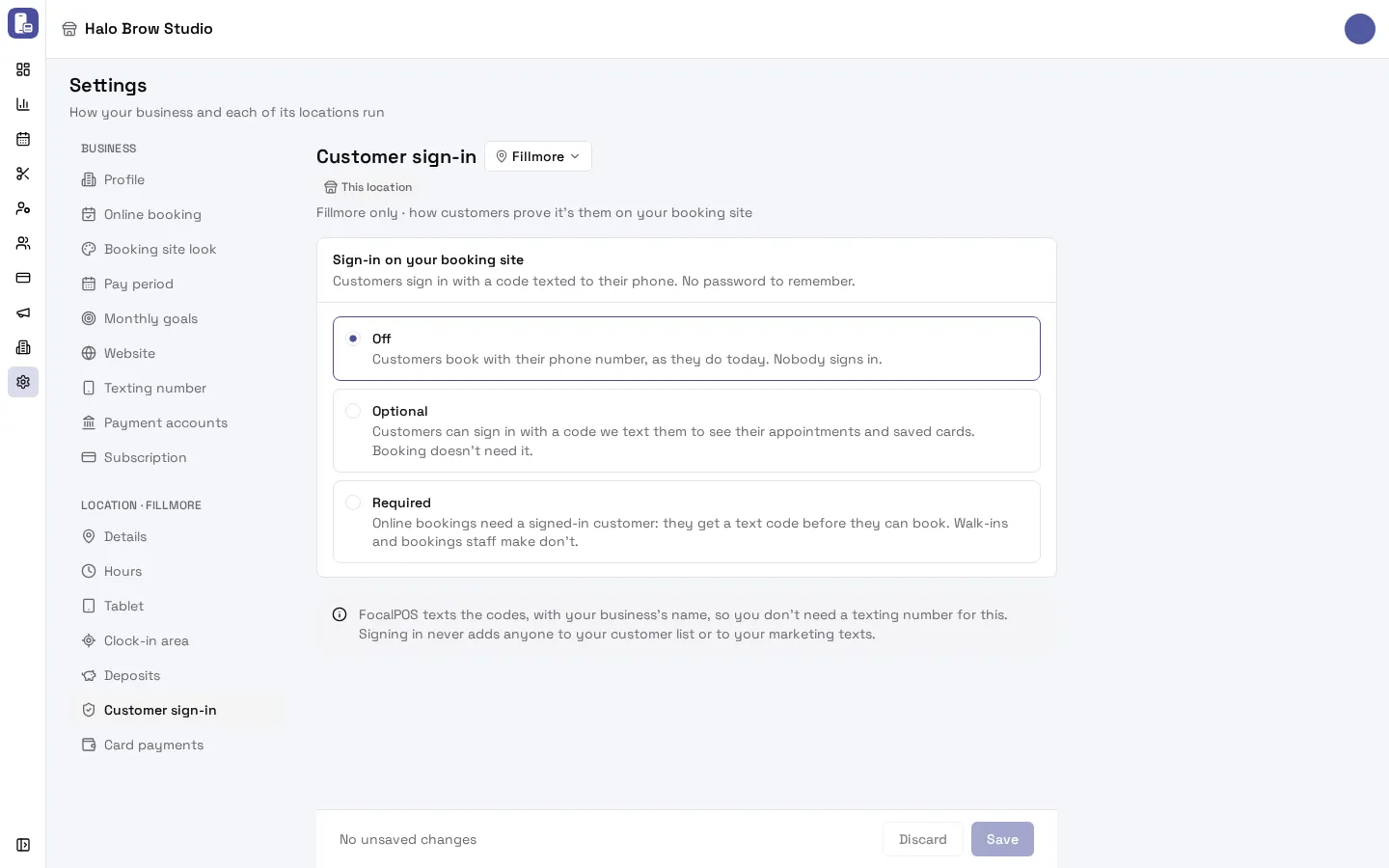
What are the choices?
Section titled “What are the choices?”| Choice | What clients get |
|---|---|
| Off (the default) | Clients book with their phone number, as before. Nobody signs in. |
| Optional | Clients can sign in with a code we text them to see their appointments and saved cards. Booking doesn’t need it. |
| Required | Online bookings need a signed-in client: they get a text code before they can book. Walk-ins and bookings your staff make don’t. |
How do I turn it on?
Section titled “How do I turn it on?”- Go to Settings, pick the location in the location menu next to the page title, then open Customer sign-in.
- Under Sign-in on your booking site, choose Off, Optional or Required.
- Press Save.
What can a signed-in client do?
Section titled “What can a signed-in client do?”On your booking site, a signed-in client can:
- see their upcoming and past appointments
- reschedule or cancel an appointment
- save a card for later, or remove a saved card (only at locations with a Fiserv (CardPointe) payment account, and only after their first booking)
Clients sign in from the Sign in link at the top of your booking site (it reads My appointments once they are signed in): they enter their phone number, tap Text me a code, then type the code they receive. With Required, the booking form shows Sign in to book instead. They stay signed in on that phone or computer for up to 30 days of not using it (90 days at most).
Do I need a texting number for this?
Section titled “Do I need a texting number for this?”No. FocalPOS texts the sign-in codes itself, with your business’s name, so you don’t need your own texting number.
Does signing in add clients to my list or to marketing texts?
Section titled “Does signing in add clients to my list or to marketing texts?”No. Signing in never adds anyone to your customer list and never changes whether they get your appointment or marketing texts.
Troubleshooting
Section titled “Troubleshooting”The page is greyed out and says “Not included in your plan”. Customer sign-in isn’t part of your business’s FocalPOS plan, so clients at this location book without signing in. Contact FocalPOS support at [email protected] to add it.
Why are my clients asked for a code? The location is set to Required (or Optional and the client chose to sign in). Switch to Off if you don’t want it.
A client says the code never arrives. Ask them to check the number they typed and wait a minute. A phone number can ask for at most 5 codes an hour; after that, or after 10 wrong codes, they see “Too many codes were asked for. Please wait an hour”. Clients can still book by calling you, and with Optional they can book without signing in.
A client with “Required” can’t book. They must sign in first. If they can’t get a code, book them yourself from the dashboard or the tablet: staff bookings never need sign-in.
A client can’t save a card. Saved cards work only at locations with a Fiserv (CardPointe) payment account, and only after the client’s first booking (“Book your first appointment, then you can save a card here”).