
Set work schedules
यो पेज अझै नेपालीमा उपलब्ध छैन, त्यसैले अंग्रेजीमा देखाइएको छ।
Clients can only book people who are working, so every person who takes clients needs shifts. Build one normal week, then reuse it.
Open the scheduleयो भिडियोका चरणहरू पढ्नुहोस्
टिमको तालिका बनाउनुहोस्
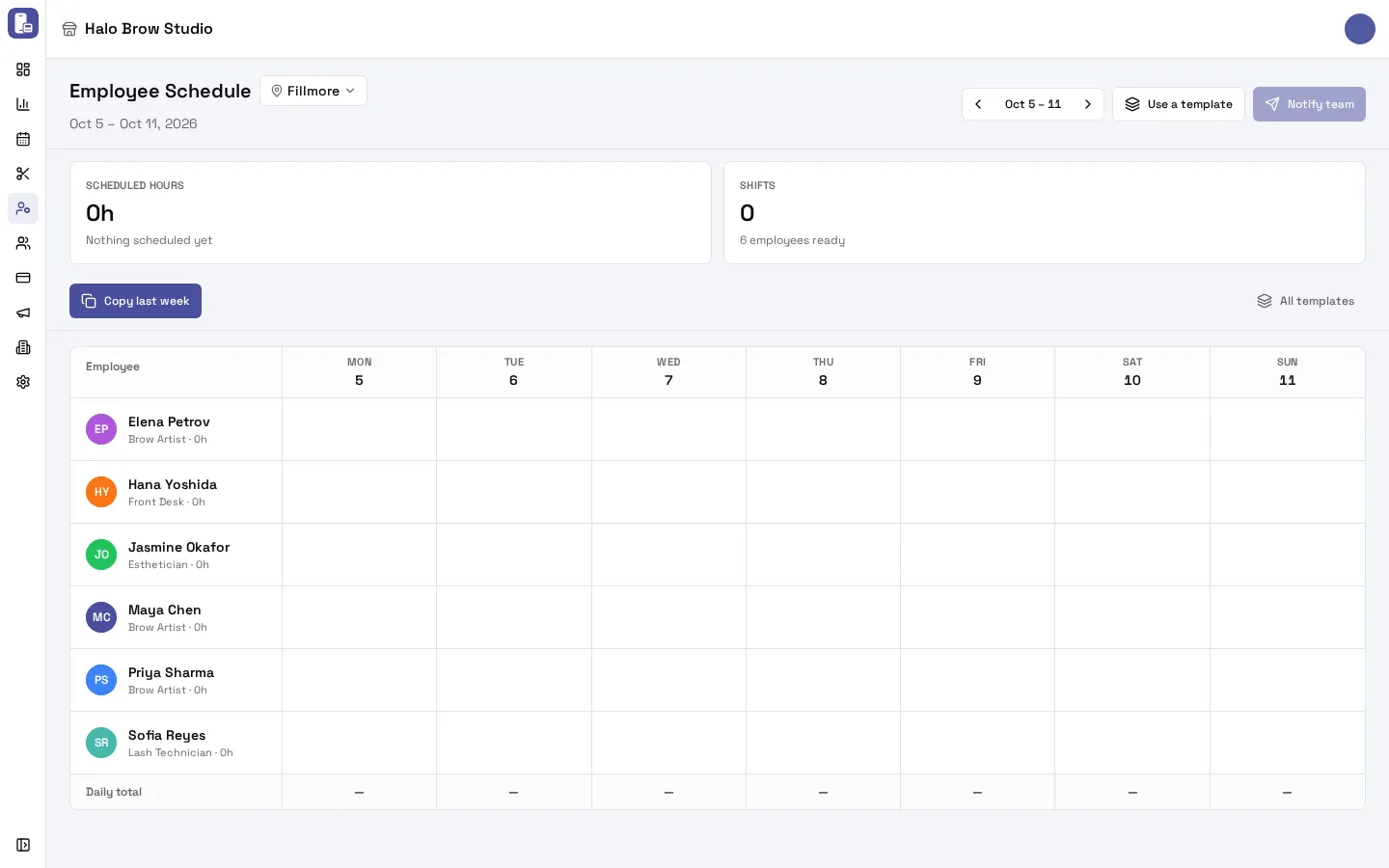
- This is your team's week. Use the arrows to go to next week, then click an empty day to add a shift.
- Pick a quick preset, or set your own start and end times.
- Repeat it on the other days they work.
- Press Add shift. Clients can now book them during these hours.
- Happy with the week? Notify team sends it to everyone. Copy last week and templates save time next week.
How do I add a shift?
Section titled “How do I add a shift?”-
Go to Employees > Schedule. Check the location in the picker next to Employee Schedule, and use the arrows to pick the week.
-
Hover over a person’s day until a + appears, then click it. (On a phone, tap the person’s day in the list.)
-
In New shift, tap a quick preset (9-5, 10-6 or 12-8) or set Starts and Ends.
-
To add the same shift on other days, tap those days under Repeat on. The summary shows how many shifts you’re adding.
-
Press Add shift.
Times are in the location’s time zone. To change or remove a shift, click it: change the times and press Save changes, or press Delete shift.
Can a shift go past midnight?
Section titled “Can a shift go past midnight?”Yes. Set an end time earlier than the start, for example 6:00 PM to 2:00 AM, and the shift shows Ends the next day. A shift can be up to 24 hours long. (Shifts inside a template can’t cross midnight.)
How do I reuse last week?
Section titled “How do I reuse last week?”Press Copy last week. It copies every shift from the week before into the week you’re looking at, at the same times. Cancelled shifts aren’t copied.
If any copied shift would overlap a shift already there, nothing is copied and a message lists the clashes. Move or delete those shifts, then copy again.
How do I use schedule templates?
Section titled “How do I use schedule templates?”A template is a normal week you can apply to any week in one step.
-
Press Use a template (or All templates) to open the Templates library.
-
Press Create template, add the shifts for each person, and save it.
-
To use it, go to the week you want, open the library and press Apply to this week on the template.
-
Choose how to apply it:
- Merge with existing: keeps the shifts already there and adds template shifts where they don’t overlap.
- Replace week: removes every shift of that week at this location first, then applies the template. This can’t be undone.
The Current week and After apply numbers show the shifts, hours and people before and after. Press Merge template or Replace week.
How does my team find out their shifts?
Section titled “How does my team find out their shifts?”Staff see their shifts in the employee app, on the Schedule tab, as soon as you add them.
To fix a clock-in or clock-out time after the fact, see Work history.
Troubleshooting
Section titled “Troubleshooting”“… overlaps a shift already scheduled”
Section titled ““… overlaps a shift already scheduled””A person can’t have two shifts at the same time. The message names the person, day and times. Change the times, or delete the other shift first. When this happens, nothing from that action was saved.
A shift shows a red warning
Section titled “A shift shows a red warning”It overlaps another shift of the same person (from before overlaps were blocked). Click one of them and change or delete it.
Clients still can’t book someone who has a shift
Section titled “Clients still can’t book someone who has a shift”Check the person can do the service (Services they do), has Bookable online on, and that the location is open at that time. Also check the shift is at the right location.
Clients can book someone who has no shift
Section titled “Clients can book someone who has no shift”Allow bookings outside staff schedules is on in Settings > Online booking. Switch it off and press Save.
Someone isn’t in the schedule
Section titled “Someone isn’t in the schedule”The schedule lists every active employee at the location, plus anyone with shifts that week. Check the person is Active and works at this location (see Add your team).
I can’t change the schedule
Section titled “I can’t change the schedule”Only people allowed to manage staff can add or change shifts and templates. Ask the owner.
Can I add a day off or holiday?
Section titled “Can I add a day off or holiday?”Delete that person’s shift for the day. With no shift, they can’t be booked (unless Allow bookings outside staff schedules is on).