
Pay period
यो पेज अझै नेपालीमा उपलब्ध छैन, त्यसैले अंग्रेजीमा देखाइएको छ।
The Pay period tells FocalPOS how often you pay your staff. Staff earnings (for example in the employee app) are worked out per pay period. It applies to the whole business, under Settings > Pay period.
Open Pay period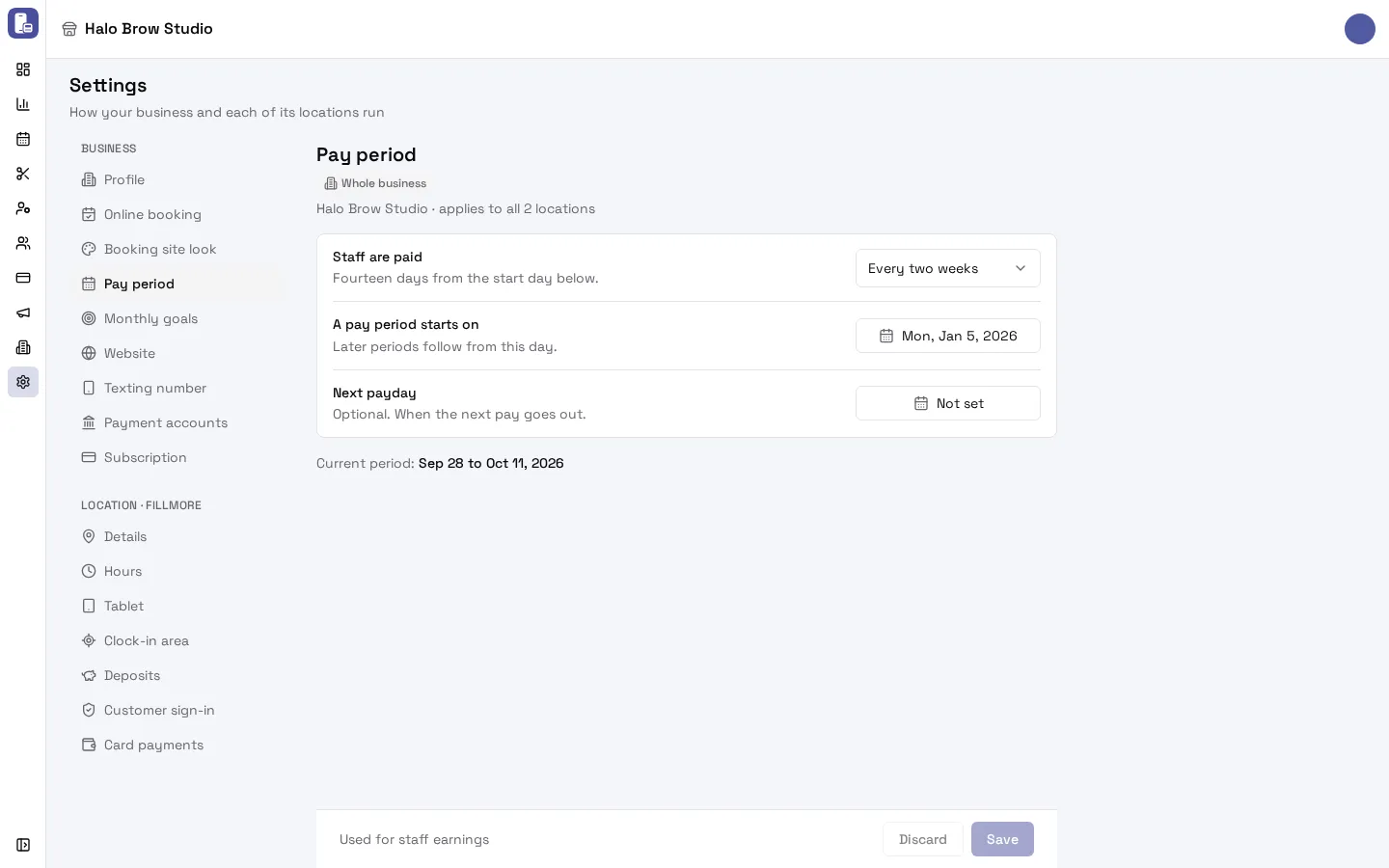
How do I set the pay period?
Section titled “How do I set the pay period?”- Go to Settings > Pay period.
- Choose how often Staff are paid:
- Every week: seven days from the start day.
- Every two weeks: fourteen days from the start day.
- Twice a month: the 1st to the 15th, then the 16th to the end of the month.
- Every month: the 1st to the end of each month.
- For every week or every two weeks, pick a day A pay period starts on. Later periods follow from this day.
- Optional: set the Next payday, when the next pay goes out. Press Clear to remove it.
- Check Current period under the settings, for example “Sep 28 to Oct 11, 2026”.
- Press Save.
What if I never set it?
Section titled “What if I never set it?”Until you save one, FocalPOS uses every two weeks, starting Monday, January 5, 2026.
Where are commission and booth rent set?
Section titled “Where are commission and booth rent set?”Each employee’s pay (commission, booth rent and so on) is on the employee’s own page. See Add your team. The pay period only decides the dates each pay covers.
Troubleshooting
Section titled “Troubleshooting”Staff earnings cover the wrong dates. Check Current period on this page. For every week or every two weeks, the start day decides where periods begin: pick a day that was the first day of a real pay period.
An employee’s earnings look too low. Check their hours for a missing clock-out under Employees > Work history (see Work history), and that the right pay period is chosen here.
The page is read-only. Only people who can manage the whole business can change it.