
Add your services & prices
यो पेज अझै नेपालीमा उपलब्ध छैन, त्यसैले अंग्रेजीमा देखाइएको छ।
Your service menu is what clients book and what staff ring up. Each service has a length (how long the calendar blocks off) and a price. Every service sits in a category, so make your categories first, for example Nails, Lashes, Waxing.
यो भिडियोका चरणहरू पढ्नुहोस्
पहिलो सर्भिस थप्नुहोस्
- Every service belongs to a category. Make one first with the Category button.
- Now press Service to add one.
- Name it, pick its category, and set how long it takes.
- Set the price, and choose how it shows to clients: Fixed, Variable or Starting at.
- Leave Visible to customers on so clients can book it online.
- Check the locations that offer it, then press Create service.
How do I make a category?
Section titled “How do I make a category?”- Go to Services > Service menu in the sidebar.
- Press + Category at the top. (On a phone, press + and choose New category.)
- Type the Category name and press Create. Repeat for each category.
To rename a category, click its name on its section header, or use the ⋯ on the header and choose Edit category…. Delete category is in the same menu. It only works once the category is empty: move its services to another category first.
How do I add a service?
Section titled “How do I add a service?”Press + Service on the Service menu (on a phone, + then New service). The Create service form has four steps:
-
Basic info: Service name, Description (optional), Category and Duration (minutes). Clients see the description when they book.
Duration is how long the calendar blocks off. Include clean-up time if you need it.
-
Pricing: the Base price (at least $0.01), Max per booking (how many of this service one booking can hold, usually 1), and the Price display:
- Fixed: shows “$90”
- Starting at: shows “From $90”, for services that can cost more
- Variable: shows “Varies”, when you price in person
-
Visibility (optional):
- Visible to customers: clients can see and book it on your booking site.
- Visible to employees: staff can see it and add it to appointments on the tablet.
- Add-on only: only offered as an extra to other services (like nail art), never booked on its own.
-
Locations: tick the locations that offer it. To give a location its own price or description, open that location’s row and set Custom Price or Custom Description, then Save.
Press Create service. You’ll see “Created service name”.
How do I change a price or duration quickly?
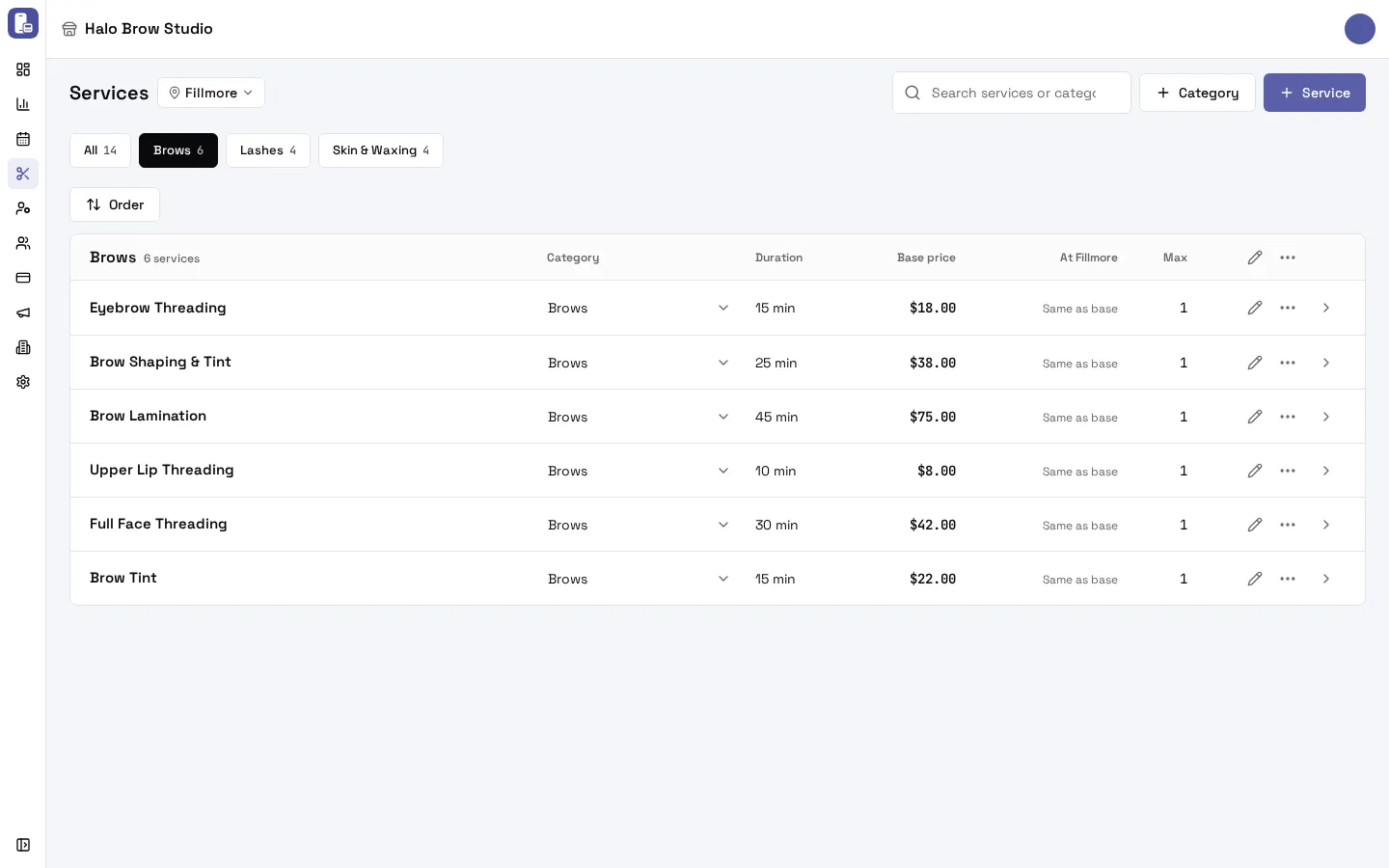
Section titled “How do I change a price or duration quickly?”On the Service menu, values with a dotted underline edit in place: click the name, duration, base price, the price at a location, Max, or the category. Change it and press the ✓ (or Enter). Press ✕ (or Esc) to cancel.
- With one location chosen in the picker, the At location column is that location’s price. “Same as base” means it uses the base price. Clear the box to go back to the base price.
- With All locations chosen, the column shows the range of prices across locations. Pick one location to change its price.
Click anywhere else on a row to open the full Edit service page.
How do I suggest add-ons when clients book?
Section titled “How do I suggest add-ons when clients book?”Open a service (click its row), go to Add-ons, and pick the services to suggest with it. You can give each add-on a discount: Amount off or Percent off. Save your changes.
How do I hide a service or stop offering it?
Section titled “How do I hide a service or stop offering it?”Use the ⋯ on the service’s row:
- Turn off stops it being booked or sold until you Turn on again. Turned-off services are hidden from the list: press Show turned off next to the chips to see them (they’re marked Turned off).
- Move to category moves it to another category.
- Offer at location adds it to a location where it isn’t offered yet. Services missing at the chosen location are listed under the Not at location chip.
To keep it bookable by staff but not online, edit the service and switch off Visible to customers.
How do I change the order of my menu?
Section titled “How do I change the order of my menu?”Press Order above the list. The Order page sets the order clients see when booking online and staff see at checkout, for the location in the picker next to the title.
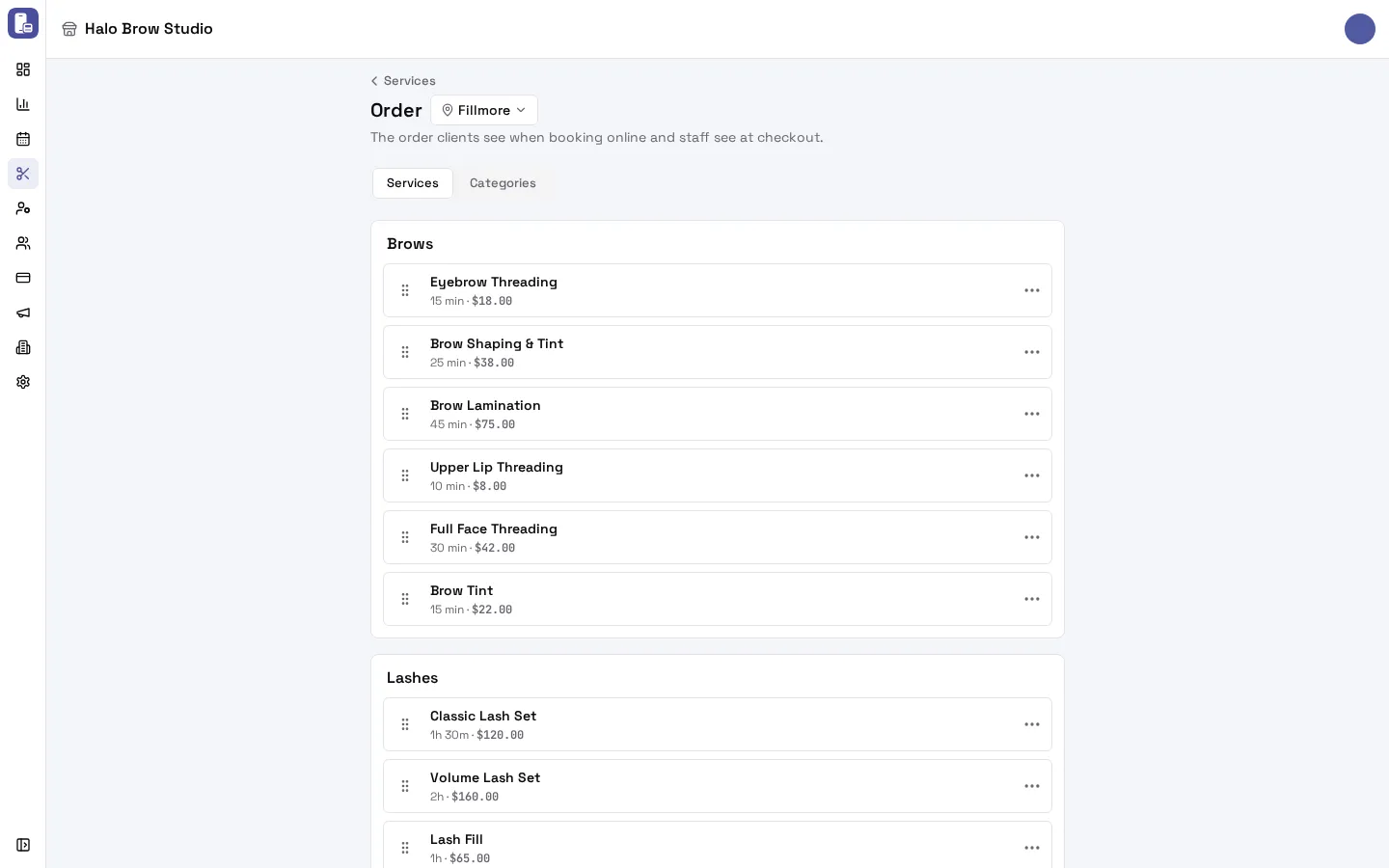
- On the Services tab, drag a service by its handle (on a phone, press and hold the row) to move it. You can drop it into another category too.
- On the Categories tab, drag whole categories.
- No dragging? Every row’s ⋯ has Move to top, Move up, Move down and Move to bottom.
- Press Save order. You’ll see “Saved the menu order” and go back to the Service menu in the new order. Cancel leaves without saving.
The service order is per location. The category order is the same at every location.
Next you’ll choose which staff do each service. That’s on the staff side, in Add your team.
Troubleshooting
Section titled “Troubleshooting”I can’t press Next on the first step
Section titled “I can’t press Next on the first step”Category is empty: there’s nothing to pick until you make a category. Also check the Service name has at least 2 characters and Duration (minutes) is between 1 and 1440.
“At least one location must be active”
Section titled ““At least one location must be active””On the Locations step, tick at least one location that offers the service.
“Price can have at most 2 decimal places”
Section titled ““Price can have at most 2 decimal places””Type prices like 45 or 45.50, not 45.505.
A service doesn’t show on my booking site
Section titled “A service doesn’t show on my booking site”Check that:
- the service isn’t turned off (press Show turned off on the Service menu),
- Visible to customers is on, and Add-on only is off,
- it’s offered at that location (look under the Not at location chip),
- at least one person does it (Services they do) and has a shift.
Staff can’t find a service on the tablet
Section titled “Staff can’t find a service on the tablet”Edit the service and check Visible to employees is on, and that it’s offered at that location.
“Move its N services to another category first”
Section titled ““Move its N services to another category first””You can’t delete a category that still has services. Use ⋯ > Move to category on each service, then delete the category.
“The menu changed somewhere else. Reload to see the latest order.”
Section titled ““The menu changed somewhere else. Reload to see the latest order.””Someone else changed the menu while you were ordering it. Press Reload, then make your changes again.
Some Order options are missing
Section titled “Some Order options are missing”Moving categories, or moving a service to another category, changes the whole business, so only people allowed to manage the catalog for the whole business see those options. Ask the owner.
Can I delete a service?
Section titled “Can I delete a service?”Turn it off instead (⋯ > Turn off). Past bookings and reports keep their history.