
Coupons and offers
यो पेज अझै नेपालीमा उपलब्ध छैन, त्यसैले अंग्रेजीमा देखाइएको छ।
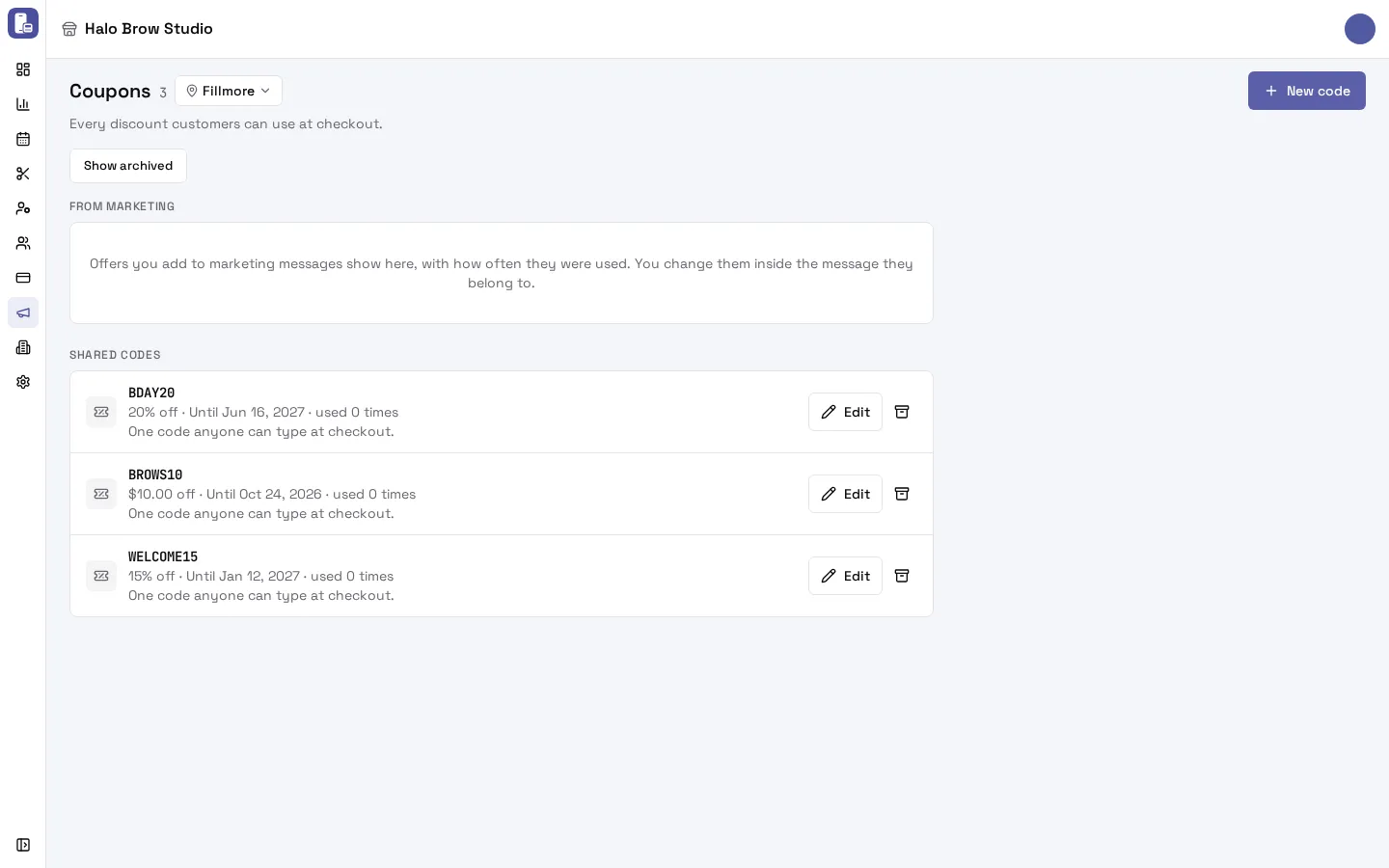
Marketing > Coupons lists every discount clients can use at checkout, in two groups:
- Shared codes: one code anyone can use, like
SUMMER20, for flyers, social posts or your front desk. - From marketing: offers you added to automatic messages or one-time sends. Each client who gets the text gets their own code.
How do I create a shared discount code?
Section titled “How do I create a shared discount code?”-
Go to Marketing > Coupons and press New code.
-
Code: what customers type or tell staff at checkout, for example
SUMMER20. Letters, digits,-and_only. Each code must be unique in your business, including archived ones. -
Discount: pick % off, $ off, Free item or Buy X get Y and set the amount.
-
Ends: the last day it works, or No end date.
-
Optional, under More rules:
- What it applies to: services, categories, employees (Served by) or locations. None picked means everything.
- Conditions: a Minimum spend, or the visit must include certain services.
- Caps: At most off a visit.
- When it works: a start date, and Blackout times (weekly times it doesn’t work).
- Where it works: Anywhere, Bookings only or Walk-ins only.
- Who can use it: Anyone, First booking only, only customers new in the last N days, or Guests without a profile too.
- Limits: Uses in all and Uses per customer.
- Combining with other offers: whether it works with other coupons.
-
Press Create code.
To change a code, press Edit on its row. To stop it, press the archive button on its row. Show archived lists archived codes, and Restore brings one back.
How do offers in marketing texts work?
Section titled “How do offers in marketing texts work?”When you add an offer to an automatic message or a one-time send:
- Each client who gets the text gets their own 6-character code (letters and digits, no look-alike characters such as 0/O or 1/I/L). Put Offer code in the text so the client sees it.
- Each client’s offer lasts the number of days you set after their text (30 by default), or until the Use it by date of a one-time send. Put Offer expiry in the text to show the last day, like “Nov 12”.
- The code only works for the client it was given to.
- The offer shows under From marketing with how many were given and used. You change it inside the message it belongs to, not on the Coupons page.
- Stop accepting on the message ends the offer for everyone.
- If you change what an offer is worth after clients already got it, they keep the offer they were given. New texts give the new one.
How do clients use a coupon?
Section titled “How do clients use a coupon?”At checkout, at the front desk. Clients tell staff their code or show the text, and staff apply it on the tablet:
- Open the client’s visit and go to Payment Summary > Discounts.
- Press Apply coupon.
- Type the code in Coupon code and press Apply, or pick a shared code from Coupons at this location.
How do I see how a coupon did?
Section titled “How do I see how a coupon did?”Each row shows how many times it was used. If you can see sales reports, it also shows what it took off and the sales of the visits it was used on, for example “used 3 times · $30 off · $240 in sales”. Each automatic message also shows Offer used 3 times: 3 visits · $240.
Troubleshooting
Section titled “Troubleshooting”The tablet says the coupon can’t be used. Why?
Section titled “The tablet says the coupon can’t be used. Why?”The tablet says why. Common reasons:
- This coupon has expired. or This coupon is not valid yet.: check its dates.
- This coupon isn’t assigned to this customer.: a personal offer code belongs to one client. Make sure the visit is under that client.
- This coupon requires a customer to be attached.: add the client to the visit first.
- The order doesn’t meet the minimum purchase for this coupon.
- This coupon can’t be used at this time.: a blackout time.
- This coupon can’t be used for this kind of visit.: it’s set to Bookings only or Walk-ins only.
- This coupon has reached its usage limit. or the client used it the maximum number of times.
- This coupon is already applied or can’t be combined with the others.
A client says their code doesn’t work.
Section titled “A client says their code doesn’t work.”Check that the visit is under the same client the text went to, and that the offer hasn’t passed its expiry. Personal codes work only for that client.
“Another coupon of the business uses this code.”
Section titled ““Another coupon of the business uses this code.””Codes are unique across your business, including archived codes. Pick another code.
My automatic message says “Paused · its offer ended”.
Section titled “My automatic message says “Paused · its offer ended”.”Its offer expired or was stopped, so texts that name the code can’t go out. Open the message and press Fix. See Automatic messages.
Can clients use a coupon when booking online?
Section titled “Can clients use a coupon when booking online?”No. The booking site has no code box. Staff apply coupons at checkout.