
Location details
यो पेज अझै नेपालीमा उपलब्ध छैन, त्यसैले अंग्रेजीमा देखाइएको छ।
Settings has two kinds of pages:
- Business pages (Profile, Online booking, Booking site look, Pay period, Monthly goals, Website, Texting number, Payment accounts, Subscription) apply to the whole business. They show a Whole business tag under the title.
- Location pages (Details, Hours, Tablet, Clock-in area, Deposits, Customer sign-in, Card payments) apply to one location. They show a This location tag, and a location menu next to the title to switch between locations.
Details is the first location page: the location’s own name, phone, time zone and address.
Open Details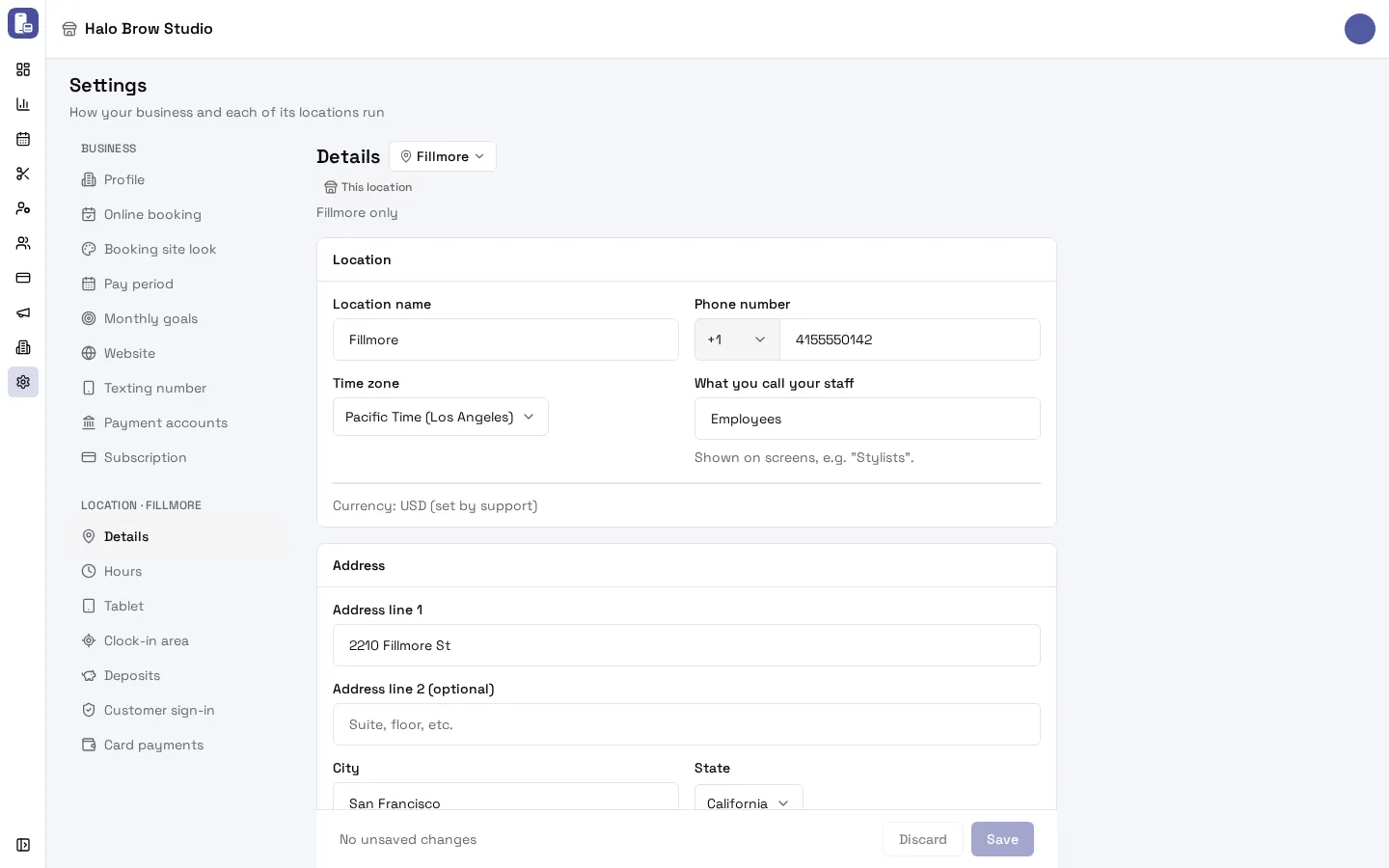
How do I change a location’s name, phone or address?
Section titled “How do I change a location’s name, phone or address?”- Go to Settings. Under the location’s heading in the Settings menu, open Details. (With more than one location, pick the right one in the menu next to the page title.)
- Change Location name, Phone number, Time zone, or the Address fields.
- Press Save. Only the fields you changed are sent.
Clients see the name, address and phone on your booking site and website. The business’s own name, email and phone are under Settings > Profile.
What is “What you call your staff”?
Section titled “What is “What you call your staff”?”The word FocalPOS uses for your team on screens at this location, for example Stylists, Technicians or Artists. Leave it empty to use Employees. Up to 40 characters.
Why does the time zone matter?
Section titled “Why does the time zone matter?”Appointment times, opening hours, reminders and reports all use the location’s time zone. If times look an hour or more off, check Time zone here.
Can I change the currency?
Section titled “Can I change the currency?”No. The currency (for example USD) is set by FocalPOS support and shown under the fields as “Currency: USD (set by support)”.
How do I copy settings to my other locations?
Section titled “How do I copy settings to my other locations?”On the Hours and Tablet pages, press Copy to other locations. It replaces those settings at every other location with this one’s. Each location can still be changed afterwards. Save your changes first: the button copies what is saved. (Details themselves aren’t copied: each location has its own name and address.)
How do I add another location?
Section titled “How do I add another location?”A second location is set up by FocalPOS support. Email [email protected].
Troubleshooting
Section titled “Troubleshooting”The page is read-only. Only people who can manage the business at this location can change it. Ask the owner or an admin (see Members).
I left the page and lost my changes. If you try to leave with unsaved changes, FocalPOS asks first. Press Save before switching locations or pages.
“Phone number must be exactly 10 digits”. Type the 10-digit number without the country code.
I changed the details of the wrong location. Check the location name in the menu next to the title and in the Settings menu heading (“Location · Fillmore”), switch, and change it back.