
Your account
यो पेज अझै नेपालीमा उपलब्ध छैन, त्यसैले अंग्रेजीमा देखाइएको छ।
Your account holds your own details: the same in every business you belong to. (Your business’s name, email and phone are under Settings > Profile.) Open it from the round button at the top right of the dashboard, then Profile.
Open Your account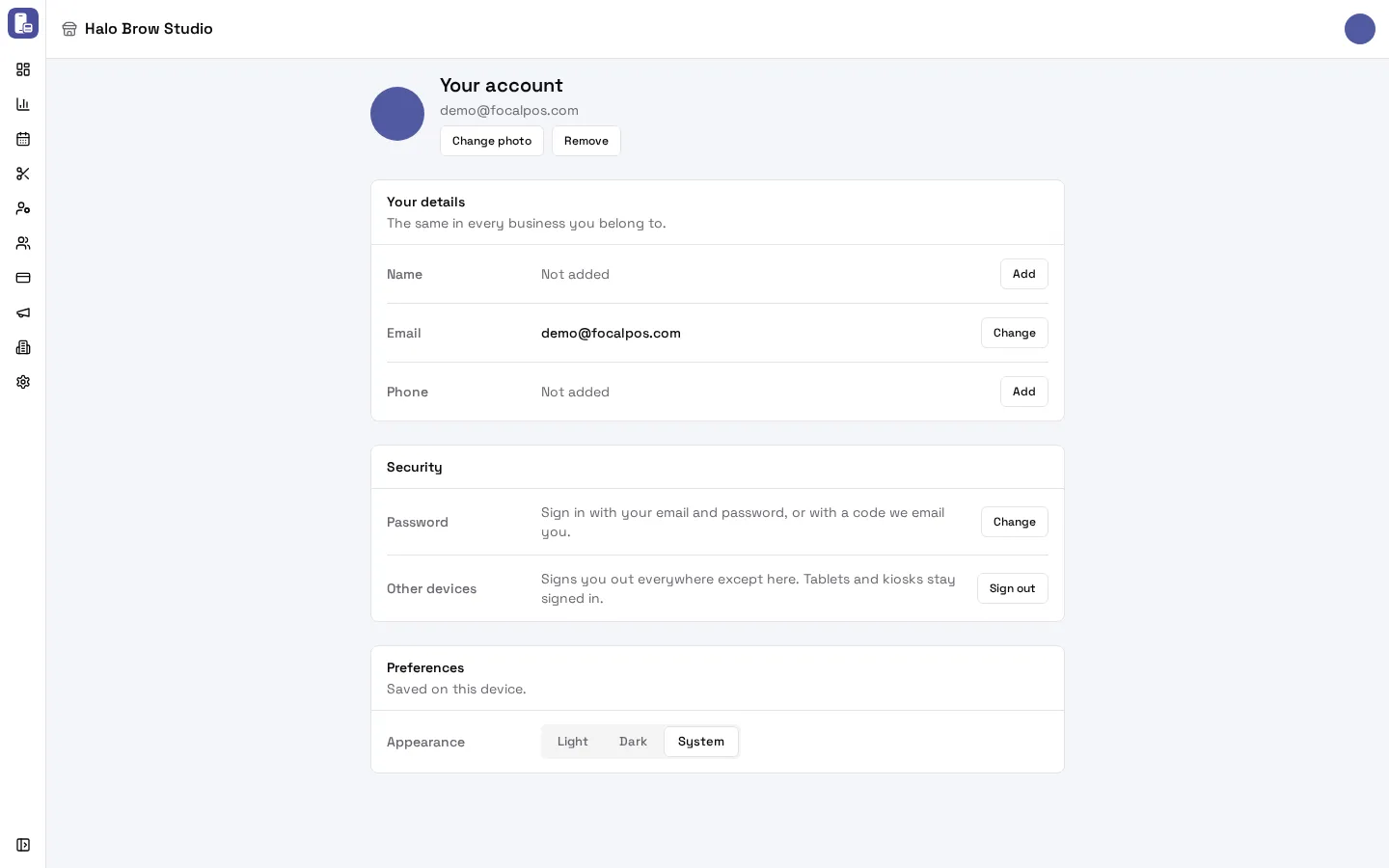
How do I change my name or photo?
Section titled “How do I change my name or photo?”- Name: press Add or Change next to Name, type it, and press Enter to save (Escape cancels).
- Photo: press Add photo or Change photo at the top and pick an image. Remove takes it off.
How do I change my sign-in email?
Section titled “How do I change my sign-in email?”- Next to Email, press Change.
- Type the new address. FocalPOS emails a code to it.
- Enter the code. If asked, also enter the code sent to your current address.
Once it’s done, the page says “That’s the email you sign in with now.” A change you didn’t finish shows Enter code on the Email row, so you can pick it up later.
How do I add or change my phone number?
Section titled “How do I add or change my phone number?”- Next to Phone, press Add or Change (or Verify if it says Not verified).
- Confirm it’s you: press Email me a code and enter the code from your email.
- Type your mobile number. FocalPOS texts it a code; enter it.
A verified phone number can also be used to sign in.
How do I change my password?
Section titled “How do I change my password?”- Under Security, next to Password, press Change.
- Confirm it’s you: press Email me a code and enter the code from your email.
- Choose a new password. The checklist shows which rules it meets.
- Optional: tick Sign out on other devices.
Forgot your password and can’t sign in? Use Forgot password? next to the password field on the sign-in page.
How do I sign out everywhere else?
Section titled “How do I sign out everywhere else?”Under Security, next to Other devices, press Sign out and confirm. You are signed out on every other phone and computer, but stay signed in here. Front desk tablets and kiosks stay signed in: they sign in as their own devices (see Tablets & devices).
Use this if you lost a phone or signed in on someone else’s computer.
How do I switch to dark mode?
Section titled “How do I switch to dark mode?”Under Preferences, choose Appearance: Light, Dark or System (follows your phone or computer). It is saved on this device only. The same switch is in the menu at the top right.
Troubleshooting
Section titled “Troubleshooting”The code email never arrives. Check spam, and that you typed the address right. Press the button again for a new code.
“That code didn’t work. Check it and try again.” Type the newest code; older ones stop working once you ask for a new one.
The phone code never arrives. Check the number and that the phone can receive texts, then ask for a new code.
My password isn’t accepted. Follow the checklist under the password field until every rule is met.
I changed my email but still see the old one. The change finishes only after you enter the code. Look for Enter code on the Email row.