
Businesses & ownership
यो पेज अझै नेपालीमा उपलब्ध छैन, त्यसैले अंग्रेजीमा देखाइएको छ।
The Businesses page (sidebar: Business > Businesses) lists every business you belong to: the ones you own and the ones you were invited to.
Open Businesses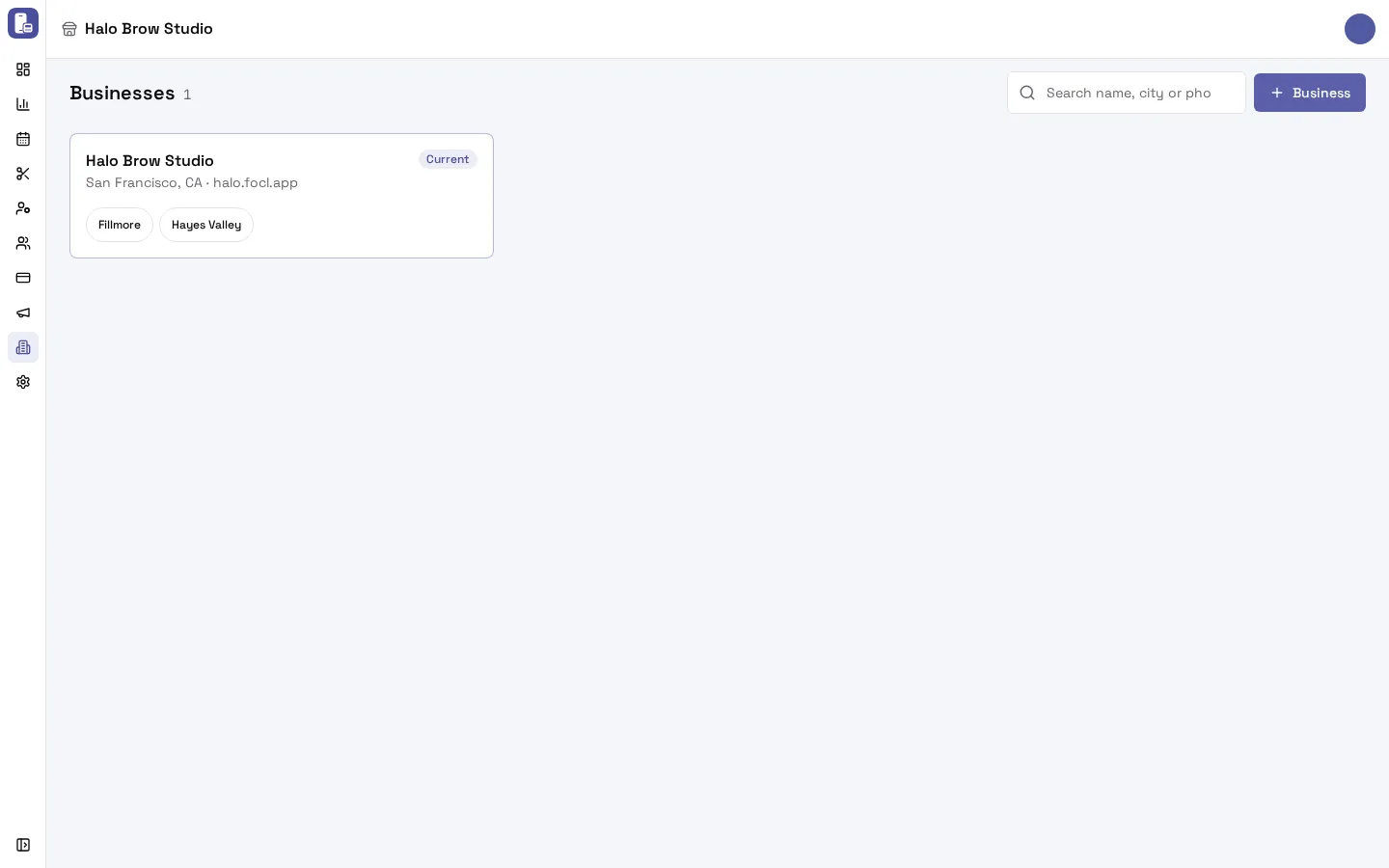
How do I switch to another business or location?
Section titled “How do I switch to another business or location?”Each business is a card with its name, city and booking address, and its locations as chips. The business you are in comes first and says Current.
- Press a location chip to switch to that business at that location.
- Or press Switch on a business’s page to go to the location you used there last.
You can also switch from the business name at the top of the dashboard.
Businesses you don’t own say Admin or Member. With both kinds, use the All, Owned by you and Shared with you filters.
How do I accept an invitation to a business?
Section titled “How do I accept an invitation to a business?”Invitations waiting for you show at the top of the Businesses page, with who invited you. Press Accept to join, or Decline. (You can also accept from the link in the invitation email.)
How do I add another business?
Section titled “How do I add another business?”Press + Business on the Businesses page. A new business starts its own setup and its own subscription. For a second location of the same business, email [email protected].
What is on a business’s page?
Section titled “What is on a business’s page?”Press a business card to open its page:
- Details: email, phone, address, time zone and booking address.
- Locations: each location’s address and phone, with Work here to switch to it, and Edit if you manage it.
- Members: how many there are, and the way to the Members page.
- Ownership (only the owner sees this): the card that pays for the FocalPOS subscription, and Transfer ownership.
To change the business you are working in, use Settings > Profile (the business) and Settings > (location) > Details (see Location details). For another business you belong to, use Edit on its page.
How do I transfer ownership of my business?
Section titled “How do I transfer ownership of my business?”Only the owner can do this, on the web dashboard.
- Make sure the new owner is already a member (invite them first on Members if not).
- Go to Businesses, open your business and scroll to Ownership.
- Press Transfer ownership.
- Choose the New owner from your members, and type the business’s name to confirm.
- Press the button that names them, for example Make Sam Lee the owner.
What changes: the new owner takes over the FocalPOS subscription and billing, and only they can transfer it again. You stay on as an admin.
Troubleshooting
Section titled “Troubleshooting”A business doesn’t show in the switcher. You have no location you may use in it. Ask its owner to give you access at a location.
“Ownership can only go to a member of the business. Invite someone first.” Invite the person on Members, wait until they accept, then transfer.
I don’t see Ownership or Transfer ownership. Only the owner sees them.
I declined an invitation by mistake. Ask the business to send you a new invitation.